Theme Editor Overview
The theme editor is where you design your storefront. You change text, images, colors and layouts while a live preview of your store updates next to you. You do not need to write code.
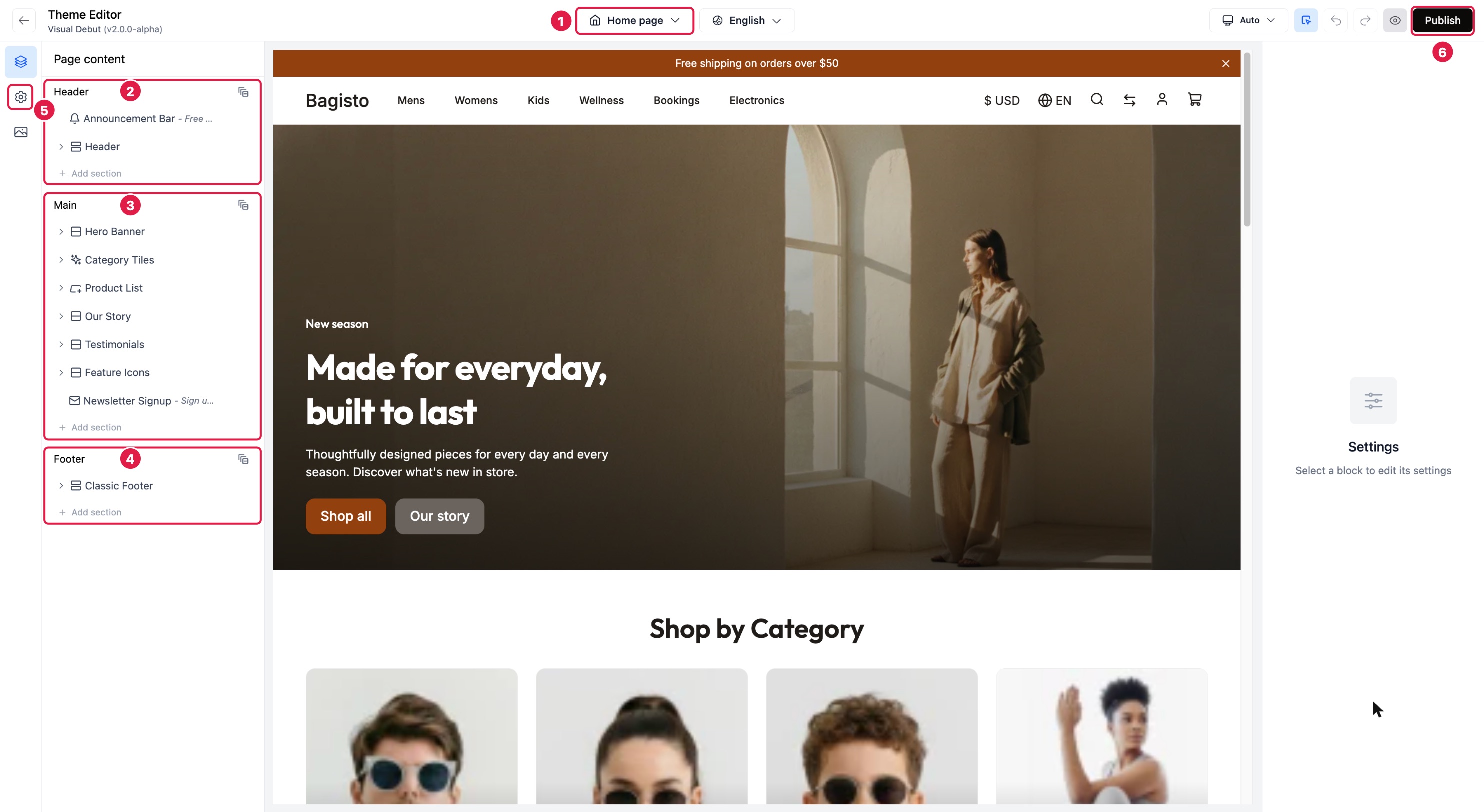
- The page you are editing.
- The Header area.
- The Main area.
- The Footer area.
- Theme settings.
- Publish.
Opening the editor
In the Bagisto admin, go to Bagisto Visual > Themes and click Customize next to your theme. The editor opens on the home page.
Five ideas to know first
Everything in this guide builds on these five ideas.
Pages. Each type of page in your store (home, product, category, cart and so on) has its own design. You pick the page to edit from the selector at the top of the editor. See Pages & Templates.
Areas. Every page is split into three areas: Header, Main and Footer. The header and footer are shared by all pages, so a change there shows up everywhere. The main area belongs to the page you are editing.
Sections. A section is a full width band of the page, such as a hero banner, a product list or a newsletter signup. You stack sections to build a page.
Blocks. Blocks are the pieces inside a section: a heading, a button, an image, a product price. Blocks can hold other blocks, which is how you build columns and more complex layouts.
Draft and live. Your edits are saved automatically as a draft. Customers keep seeing the live version of your store until you click Publish. See Preview & Publish.
Page settings and theme settings
There are two kinds of settings, and knowing which one to use saves a lot of time.
| Page settings | Theme settings | |
|---|---|---|
| Where | The settings panel, after you select a section or block | The gear icon in the left rail |
| Affects | Only the section or block you selected | Your whole store |
| Examples | Hero text, banner image, spacing of one section | Logo, brand colors, fonts, button style |
A good habit is to set up your theme settings first (logo, colors, fonts), then design the pages. See Theme Settings.
What you will find in this guide
- Interface Guide: a tour of every part of the editor.
- Quick Start: the editor's main features, hands on, in about 15 minutes.
- Sections & Blocks: add, arrange, hide and remove content.
- Editing Settings: every kind of field, and settings that differ on mobile.
- Building Custom Layouts: design your own sections from scratch.
- Theme Settings: logo, colors, fonts and global styles.
- Working with Images: upload, crop and describe images.
- Pages & Templates: product, category and other pages.
- Custom Templates: a different design for selected products, categories or CMS pages.
- Languages & Channels: translate your store and edit each channel.
- Preview & Publish: check your work and make it live.
- Recipes: step by step solutions to common tasks.
- Troubleshooting: answers when something does not look right.
Using one of Bagisto's own themes?
The editor also works with themes made for Bagisto itself, such as the Default theme. Those themes work a little differently. See Editing Bagisto themes.