Preview & Publish
The editor keeps two versions of your store: the draft you are working on and the live version customers see. This page explains how to check your draft and when to publish it.
Your work is saved automatically
There is no save button. Every change is saved to the draft as you make it, so you can close the editor and come back later without losing anything. Customers do not see the draft.
Undo and redo
Use the arrows in the top bar, or the keyboard:
| Action | Windows and Linux | Mac |
|---|---|---|
| Undo | Ctrl + Z | Cmd + Z |
| Redo | Ctrl + Y or Ctrl + Shift + Z | Cmd + Shift + Z |
Undo works on the changes made since you opened the editor. To keep something you might need later, hide it rather than remove it.
Checking your draft
In the editor
Use the device menu in the top bar to check the page at different sizes:
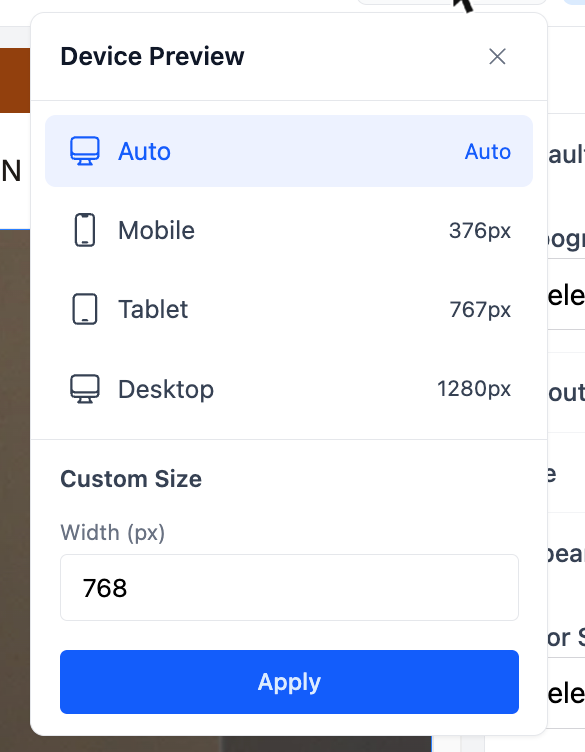
- Auto fits the preview to the space available.
- Mobile, Tablet and Desktop show typical screen widths.
- Custom Size lets you type any width and click Apply, for example to check a large phone or a small laptop.
In a new tab
Click the eye icon in the top bar. Your store opens in a new browser tab with your draft, without the editor around it. Click through it as a customer would: open products, change language, add to cart.
Publishing
When the draft is ready, click Publish in the top bar.
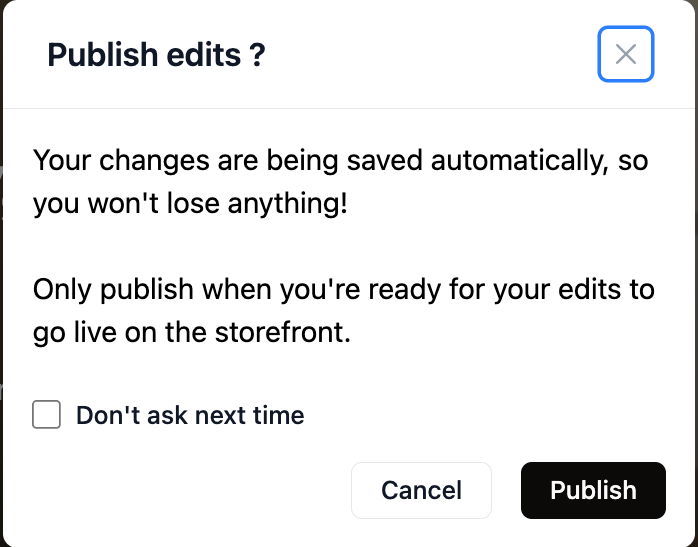
Click Publish in the confirmation to make your changes live. Tick Don't ask next time if you do not want the confirmation again on this browser.
Publish sends everything
Publishing makes the whole draft live at once: every page and template, every language and channel, and the theme settings. If you are in the middle of a larger change on another page, finish it or hide it before publishing.
A checklist before you publish
- [ ] Checked the changed pages on Mobile, Tablet and Desktop.
- [ ] Clicked the main buttons and links in the preview tab.
- [ ] Switched through every language you changed, and translated new sections.
- [ ] Set alt text on new images.
- [ ] Hidden anything that is not ready yet.
After publishing
The live store now matches your draft. Keep editing as usual: new changes form a new draft that customers will not see until you publish again.
If your store uses a page cache, it may take a moment for every visitor to see the update.