Theme Settings
Theme settings define the look of your whole store: logo, colors, fonts and the style of buttons and form fields. Set them up first; every section you add afterwards picks them up automatically.
Open them with the gear icon in the left rail. Click the stack icon to go back to the page content.
Like everything else in the editor, theme setting changes are saved as a draft and go live when you publish.
INFO
The groups below are those of the Visual Debut theme. Other themes can offer different settings, but colors and typography work the same way.
Logo & Favicon
| Setting | Use |
|---|---|
| Logo (Desktop) | The logo shown in the header on larger screens. |
| Logo (Mobile) | An optional, usually smaller or simpler logo for phones. |
| Favicon | The small icon in the browser tab. Use a square image of 32 × 32 or 16 × 16 pixels. |
Click Select image to upload or pick an image. See Working with Images.
Color schemes
A color scheme is a named set of colors that work together: a background, the text on it, button colors and a few accents. Instead of picking colors section by section, you give each section a scheme. Change a scheme once and every section using it updates.
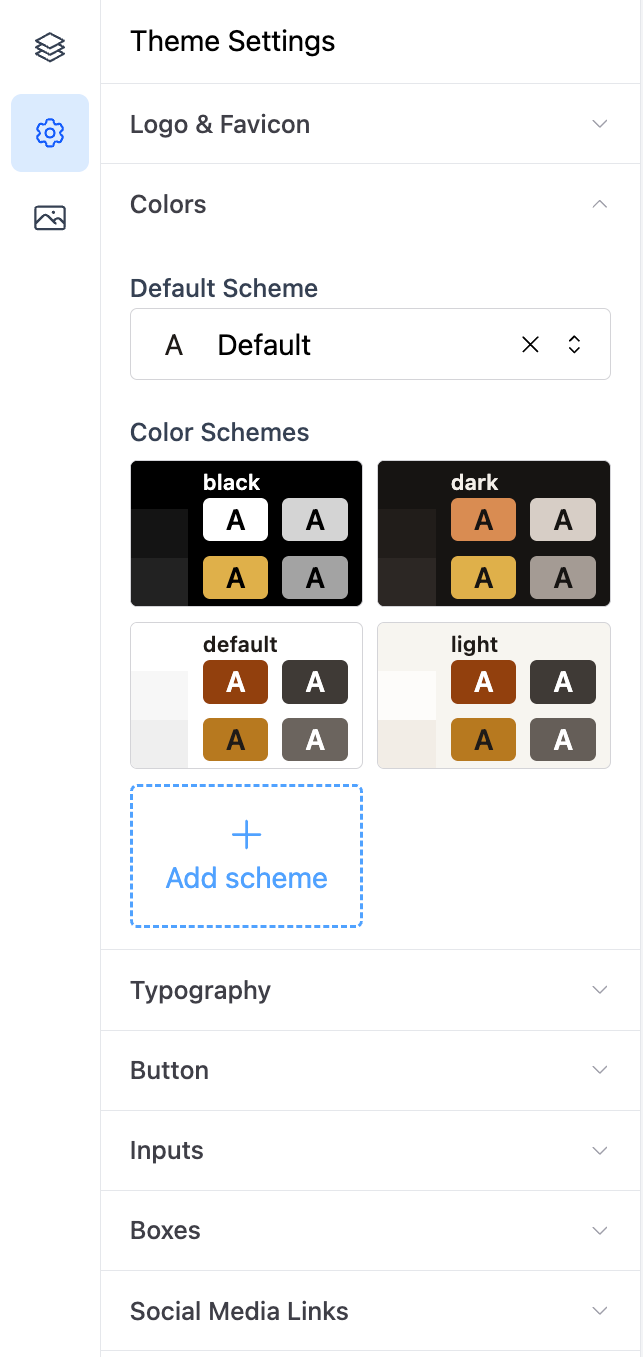
The Visual Debut theme comes with four schemes: black, dark, default and light. Each card previews the scheme's background and its four main button colors.
Choosing the default scheme
Default Scheme is the scheme used for the page background and for every section where you have not chosen one.
Editing a scheme
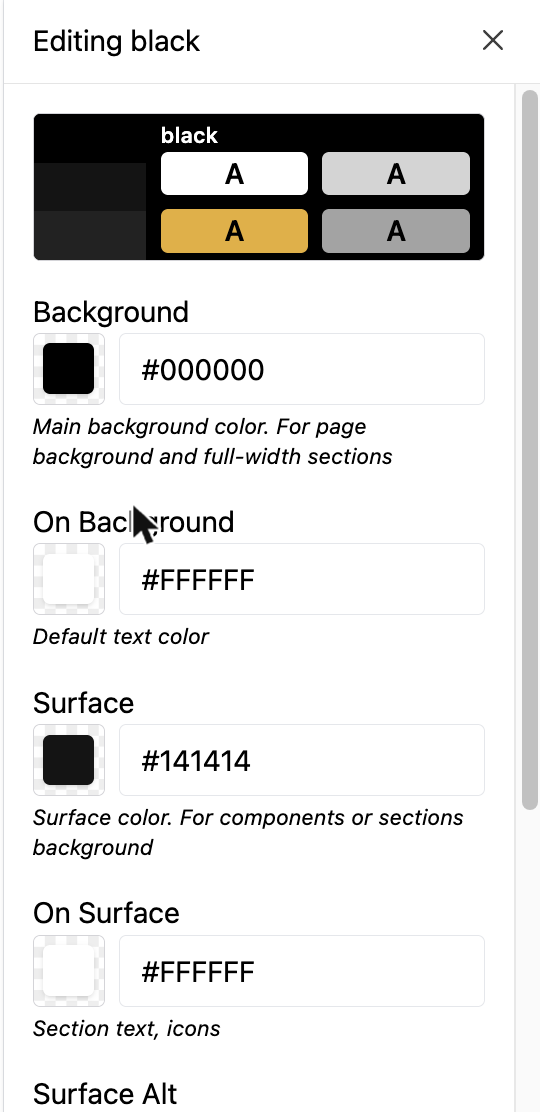
Click a scheme card to edit it. Each color has a short description of where it is used:
| Color | Used for |
|---|---|
| Background / On Background | The page or section background, and the default text on it. |
| Surface / On Surface | Cards and components that sit on the background, and their text. |
| Surface Alt / On Surface-Alt | Hover states and dropdowns. |
| Primary / On Primary | Main buttons, links and calls to action, and the text on them. |
| Secondary / On Secondary | Headings, badges and accents. |
| Accent / On Accent | Featured content, banners and highlights. |
| Neutral / On Neutral | Neutral elements. |
| Info, Success, Warning (and their On colors) | Messages, confirmations and warnings. |
Every color has an On partner: the color of text or icons placed on top of it. Keep enough contrast between each pair so text stays readable.
Close the editor with the × at the top of the panel.
Adding a scheme
Click Add scheme to create a new one, then edit its colors. A store typically needs three or four: a light one for most sections, a dark one for contrast bands and the footer, and one in your brand color for promotions.
Applying a scheme to a section
Select the section, open Appearance and pick a scheme from Color Scheme.
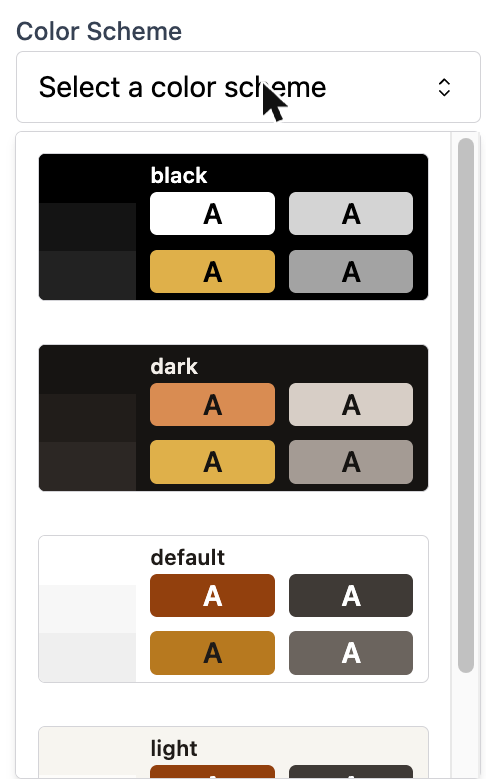
Alternating schemes from one section to the next (light, then dark, then light) is a simple way to give a long page rhythm.
Typography
Typography works with presets: named text styles such as Body, Heading 1 to Heading 6, Body Sm and Body Xs. Blocks use these presets, so changing one restyles every heading or paragraph that uses it.
Open Typography to see the list. Each row summarizes the preset: font, weight, size, line height and letter spacing.
Editing a preset
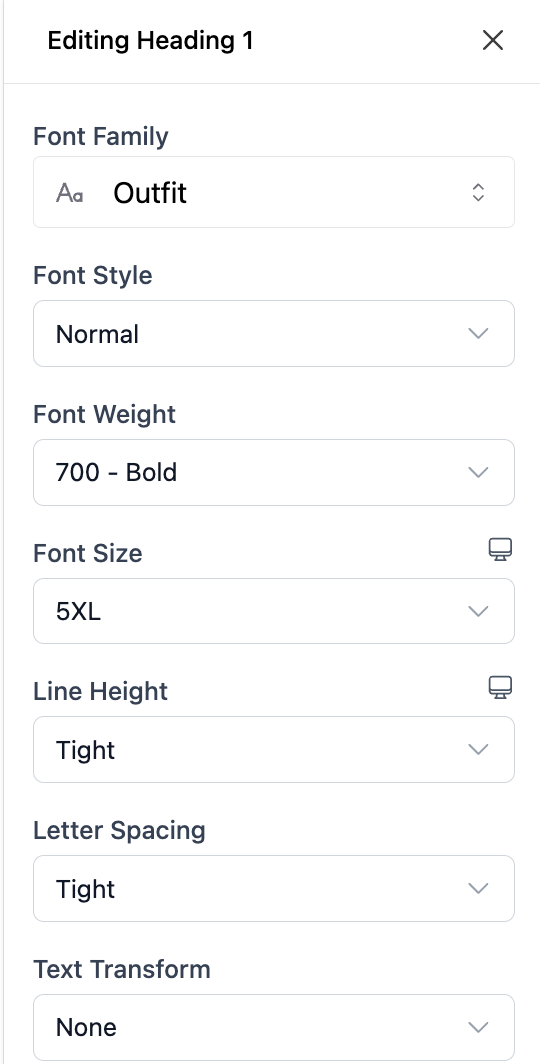
Click a preset to edit it:
| Setting | What it does |
|---|---|
| Font Family | The font. Pick from the font library. |
| Font Style | Normal or italic. |
| Font Weight | From thin to black. |
| Font Size | The size. It can differ on mobile; see per device settings. |
| Line Height | Space between lines. It can also differ per device. |
| Letter Spacing | Space between letters. |
| Text Transform | None, UPPERCASE, lowercase or Capitalized. |
A good starting point is one font for headings and one for body text, with clearly different sizes between Heading 1, Heading 2 and Body.
Adding a preset
Click Add preset to create your own style, for example a small uppercase Eyebrow style for short labels above headings. Click a custom preset's name to rename it. The theme's own presets cannot be renamed.
Using a preset on a section or block
Most sections and text blocks have a Typography setting. Pick the preset to use there.
Button
Controls the shape and depth of all buttons in your store:
- Radius: from square corners to fully rounded.
- Thickness: the border width.
- Elevation (Outer Shadow): a shadow under the button, with its offset, blur, spread, color and opacity.
- Cavity (Inner Shadow): an inner shadow for a pressed look.
Button colors come from the color schemes, not from here.
Inputs
The look of form fields such as the search box, newsletter signup and checkout fields: Height, Border width and Border radius.
Boxes
The border width and corner radius of cards, image frames and other boxes, such as the images in the product gallery.
Social Media Links
Your profile addresses on Facebook, Instagram, YouTube, TikTok, X/Twitter and Snapchat. Leave a field empty if you do not use that network.
Changing the footer's social icons
The round social icons in the Visual Debut footers are buttons with their own links. To point them to your profiles, open the footer in the Page content tree, select each icon button and change its URL. To remove one, remove the button.
Page settings or theme settings?
| If you want to... | Use |
|---|---|
| Change your brand color everywhere | Theme settings > Colors > edit the scheme |
| Make one section dark | Select the section > Appearance > Color Scheme |
| Use a new font for all headings | Theme settings > Typography > Heading presets |
| Make one heading bigger | Select the heading > pick another preset, or change its heading level |
| Round all buttons | Theme settings > Button > Radius |