Custom Templates
By default every product page uses the same design, and so do all category pages and all CMS pages. A custom template is an alternative design that you assign to selected items only. For example:
- a Gift card product template without size options and with a personal message section,
- a Lookbook category template with large editorial images above the product grid,
- a Landing page CMS template for campaigns, with a hero and no sidebar.
Before you start
Custom templates need two things:
- Template assignments must be enabled. If you do not see an arrow next to Product Page, Category Page or CMS Page in the page selector, ask your developer to enable them (the
BAGISTO_VISUAL_TEMPLATE_ASSIGNMENTSsetting). - The store must use a visual theme, such as Visual Debut. On Bagisto's own themes, assigning a template in the admin has no effect.
Creating a custom template
Open the page selector in the top bar and click Product Page, Category Page or CMS Page.
A second panel lists the default template, any custom templates you already have, and Create template.
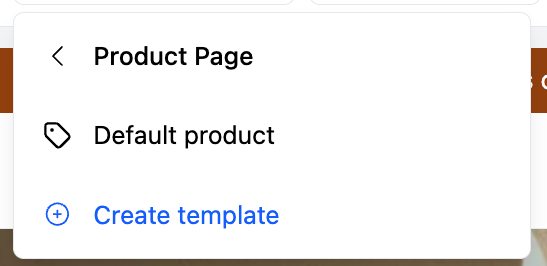
Click Create template.
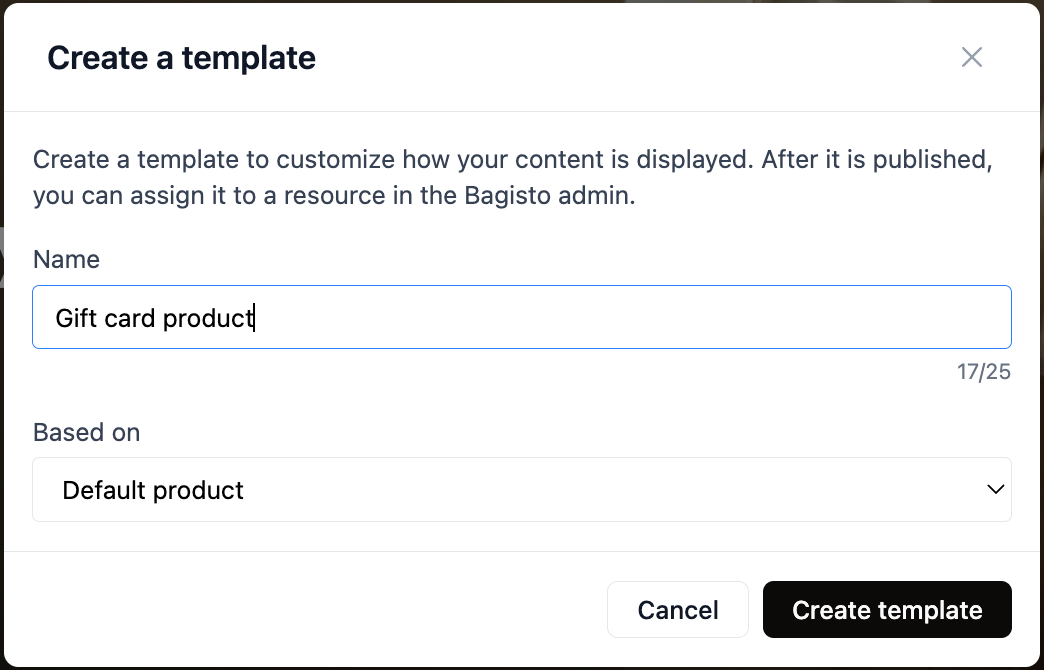
Enter a Name (up to 25 characters). Choose one customers will never see but your team will recognize, such as Gift card product.
In Based on, choose where to start:
- the default template (for example Default product) to copy its current design and adjust it, or
- Empty template to start with an empty main area.
Click Create template.
The new template opens in the editor. Design it like any other page. The header and footer stay shared with the rest of the store; only the main area is specific to the template.
To come back to it later, open the page selector, click the page type, and pick the template by name.
Publishing before assigning
A new template is a draft, like any other change. Publish it before assigning it; until then it does not appear in the Bagisto admin.
Assigning a template
Assignments are made in the Bagisto admin, on the item that should use the template.
Products
- Go to Catalog > Products and edit the product.
- At the top of the right column, choose the template in Theme template.
- Click Save Product.
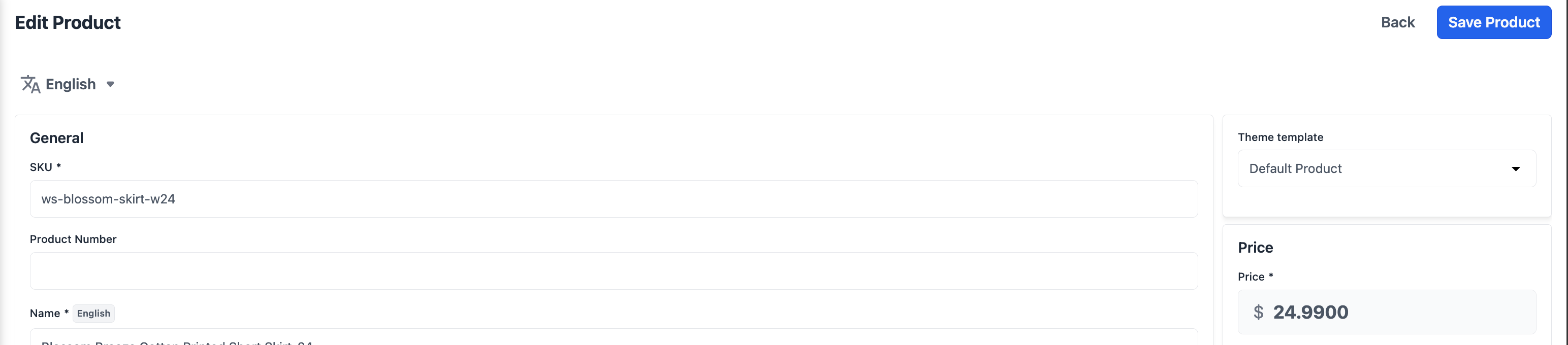
Product assignments are saved for the channel and language selected at the top of the product form. Repeat for each channel and language where the product should use the template.
Categories
- Go to Catalog > Categories and edit the category.
- In the right column, open Theme template and choose the template.
- Click Save Category.
Category assignments are saved per language.
CMS pages
- Go to CMS > Pages and edit the page.
- Open Theme template and choose the template.
- Save the page.
CMS page assignments are saved per language. Pages that use a custom template also get a shortcut to open them in the theme editor from the CMS page list and the edit page.
Going back to the default design
Set Theme template back to the default option (for example Default Product) and save. The item uses the standard template again.
Tips
- Base new templates on the default unless you really want a blank page. You keep everything that already works, such as the buy buttons.
- Test with one item first. Assign the template to a single product or page, check it on the storefront, then roll it out.
- Keep the number of templates small. Each template is a design to maintain. Use settings and hidden blocks for small differences, and custom templates for pages that really need a different structure.