Quick Start
This walkthrough takes about 15 minutes and covers the editor's main moves on the home page: editing text and images, setting your brand color, adding and arranging a section, checking mobile and publishing.
Prefer to watch first? This two minute video shows the same steps.
Before you start, open the editor: Bagisto Visual > Themes > Customize. The editor opens on the Home page.
Step 1: Change the hero text
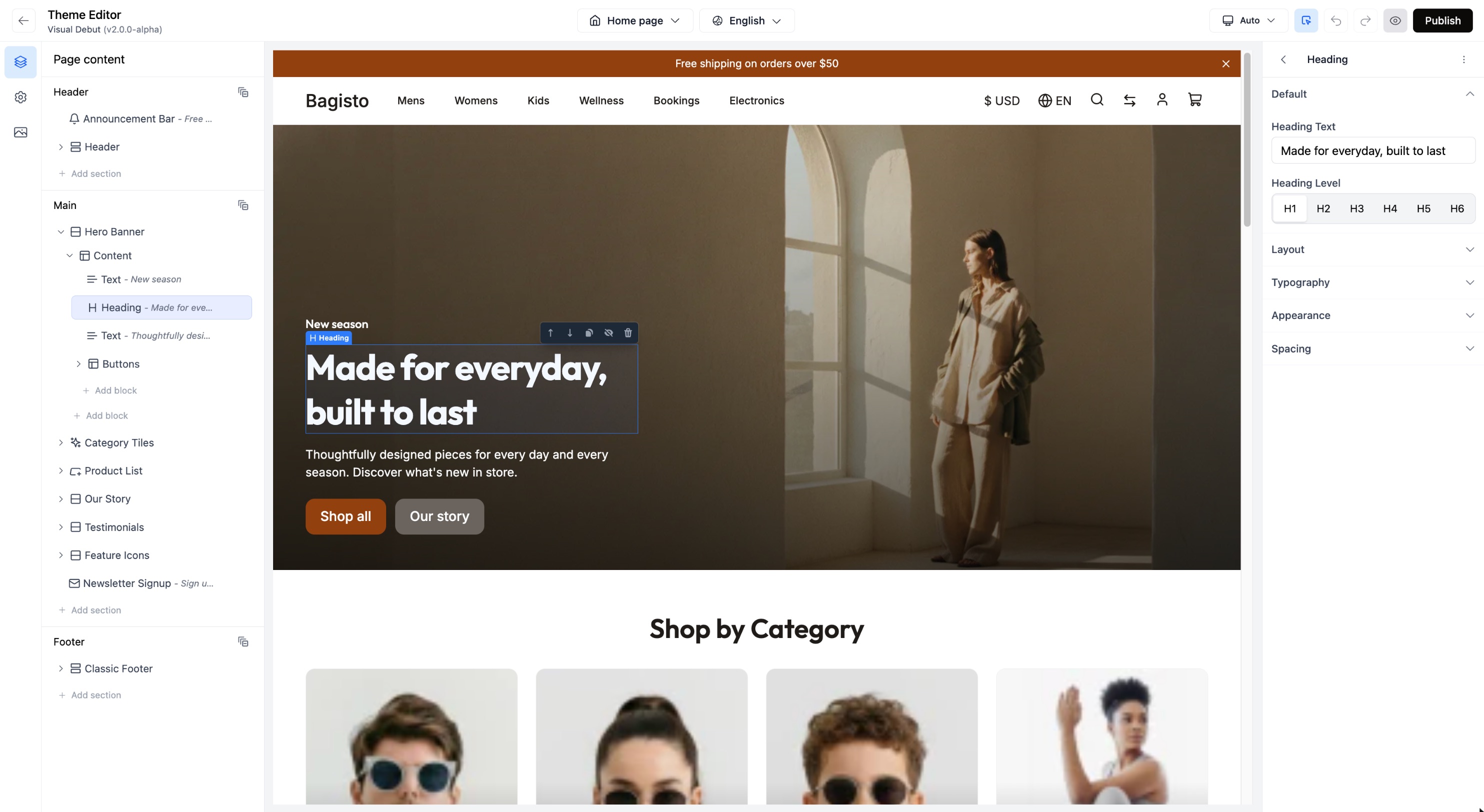
- In the preview, click the big heading of the hero banner (Made for everyday, built to last in the demo store).
- The settings panel shows Heading Text. Type your own headline.
- Click the smaller text below the heading in the preview and replace it with a short sentence about your store.
The preview updates while you type. There is no save button: your draft is saved automatically.
Step 2: Change the hero image
- In the Page content tree on the left, click Hero Banner.
- In the settings panel, open the Appearance group.
- Under Background Image, click Change image.
- Click Add images (or drop a file on the panel), then pick your image and click Select.
- Click Edit metadata to describe the image for screen readers, and drag the blue dot onto the most important part of the photo so it stays visible on small screens.
More on images in Working with Images.
Step 3: Apply your brand color
- Click the gear icon in the left rail to open Theme Settings.
- Open Colors. You see the store's color schemes.
- Click the default scheme to edit it.
- Change Primary to your brand color. Primary is used for main buttons, links and calls to action.
Every section that uses this scheme picks up the new color at once. See Theme Settings to learn what each color does.
Step 4: Add a product section
- Click the stack icon in the left rail to go back to Page content.
- Under Main, click Add section.
- Open the Product category and click Featured Products.
- The new section appears at the end of the main area and is selected. In its settings:
- Leave Parent Category empty to show products from your whole catalog, or pick a category.
- Set Product Type to Featured Products.
- Choose how many products to show and whether to display them as a Grid or a Carousel.
- Click the heading inside the new section and give it your own title.
Which products are "featured"?
Featured products are the ones with Featured turned on in their Bagisto product settings. The editor only decides how they are displayed.
Step 5: Move it into place
The new section was added at the bottom. To move it higher:
- Drag its row in the Page content tree to the position you want, or
- Select it and click the up arrow in the toolbar above it in the preview, or
- Use ⋮ > Move to Previous in the settings panel.
Step 6: Check mobile
Click the device menu in the top bar (it says Auto) and choose Mobile. Scroll through the page. If something looks too large or too tight on a phone, most layout settings can have a separate mobile value. See Settings that change per device.
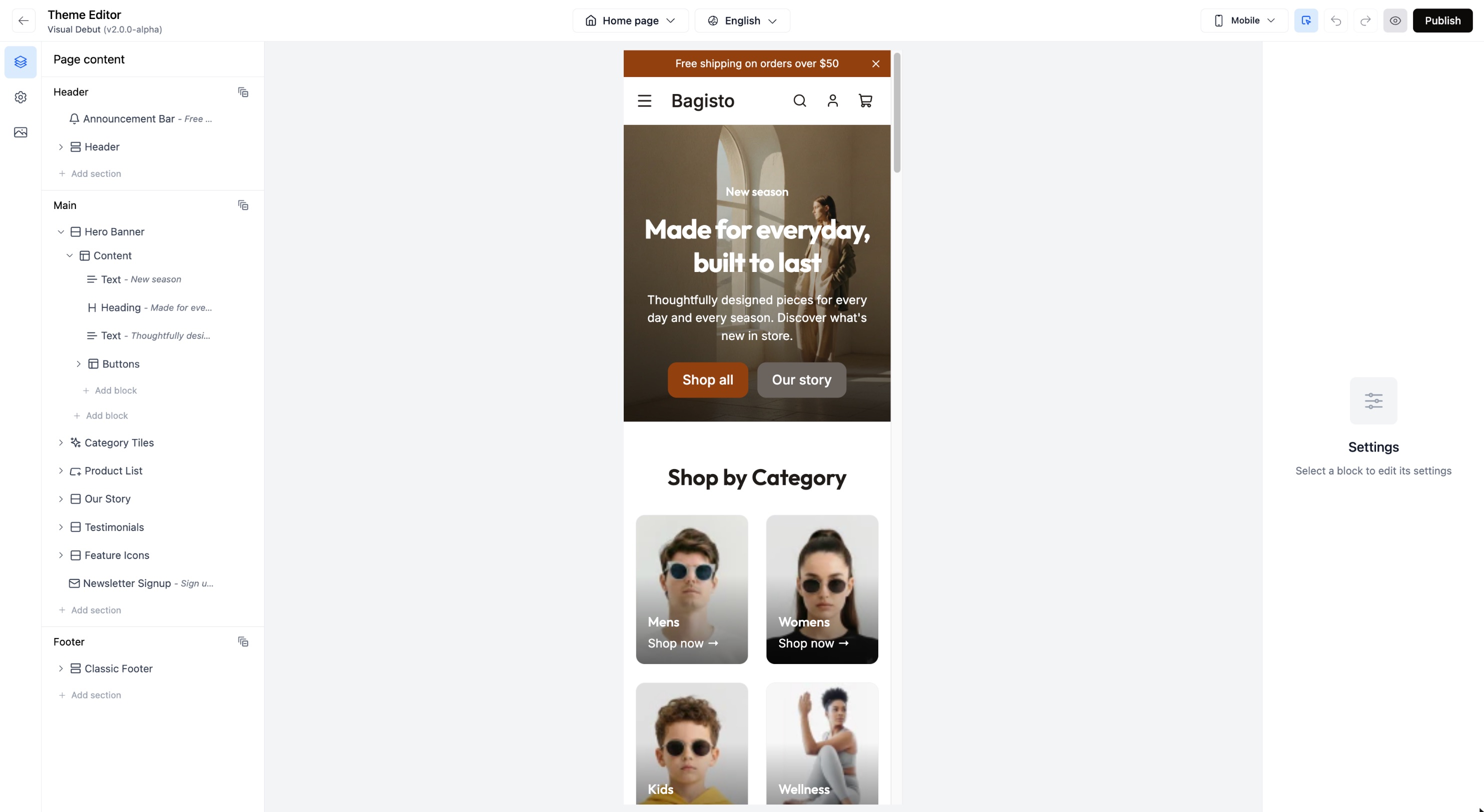
Switch back to Auto when you are done.
Step 7: Preview and publish
- Click the eye icon in the top bar. Your store opens in a new tab with your changes, so you can click around like a customer.
- When you are happy, click Publish and confirm.
Your changes are now live. Anything you edit from here on is a new draft until you publish again.
Where to go next
- Sections & Blocks to rearrange and fine tune content.
- Building Custom Layouts to create sections that do not exist yet.
- Recipes for common tasks such as a seasonal campaign or an FAQ page.