Building Custom Layouts
When none of the ready made sections fits, build your own with Custom Section. It starts empty, accepts any block, and gives you full control over layout, size and background. Several of the theme's own sections, such as the Hero Banner, are built the same way, so everything on this page also applies to them.
The building blocks
You only need three ideas:
- Custom Section is the outer band of the page. It sets the background, height and width, and arranges whatever you put in it.
- Group is a box inside a section. Use it to keep blocks together, for example a heading, a text and a button that form one column.
- Content blocks (Heading, Text, Rich Text, buttons, Image, Icon, Divider and so on) are what customers actually see.
Sections and groups both arrange their children in a column (one under the other) or a row (side by side). Combining the two is how you build almost any layout.
Layout settings
Select a Custom Section or a Group and open Layout:
| Setting | What it does |
|---|---|
| Direction | Vertical stacks children in a column. Horizontal places them side by side in a row. |
| Content Position | Moves the children along the direction: top to bottom in a column, left to right in a row. |
| Content Alignment | Lines the children up the other way: left, center or right in a column; top, middle or bottom in a row. |
| Gap Between Items | The space between the children. |
The demo store's hero banner is a good example: it is Vertical, with Content Position: End (content sits at the bottom) and Content Alignment: Start (content is on the left).
Size settings
| Setting | What it does |
|---|---|
| Content Width | Container keeps the content to a comfortable reading width in the middle of the screen. Full Width lets it run edge to edge. |
| Section Height | How tall the section is. Auto fits the content; the fixed sizes go from extra small to large; Screen fills the browser window; Custom lets you set an exact height. |
Appearance settings
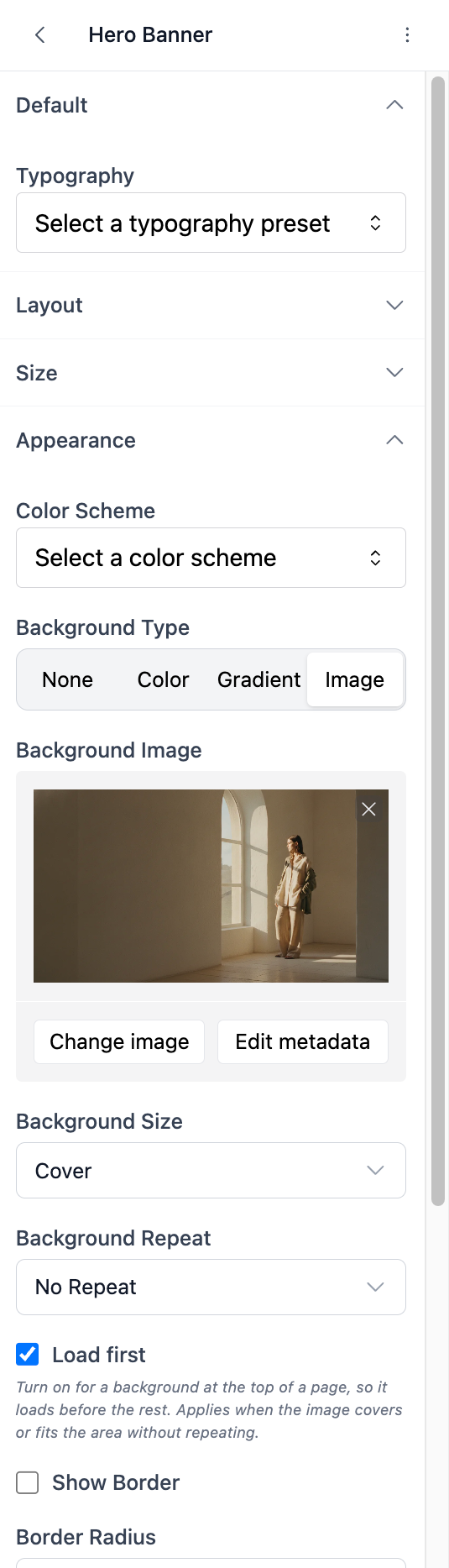
| Setting | What it does |
|---|---|
| Color Scheme | The colors used for the background, text and buttons inside. See color schemes. |
| Background Type | None, a plain Color, a Gradient, or an Image. |
| Background Image | The image, with Background Size (Cover fills the area and crops, Contain shows the whole image) and Background Repeat. |
| Load first | Turn this on for a background image at the top of the page. The browser loads it before the rest, so the page appears faster. Leave it off for images further down. |
| Show Border and Border Radius | A frame around the section and rounded corners. |
| Show Overlay | A layer over the background image, Solid or Gradient, that keeps white text readable on a bright photo. |
Example: a two column promotion
This builds a section with text and a button on the left and an image on the right.
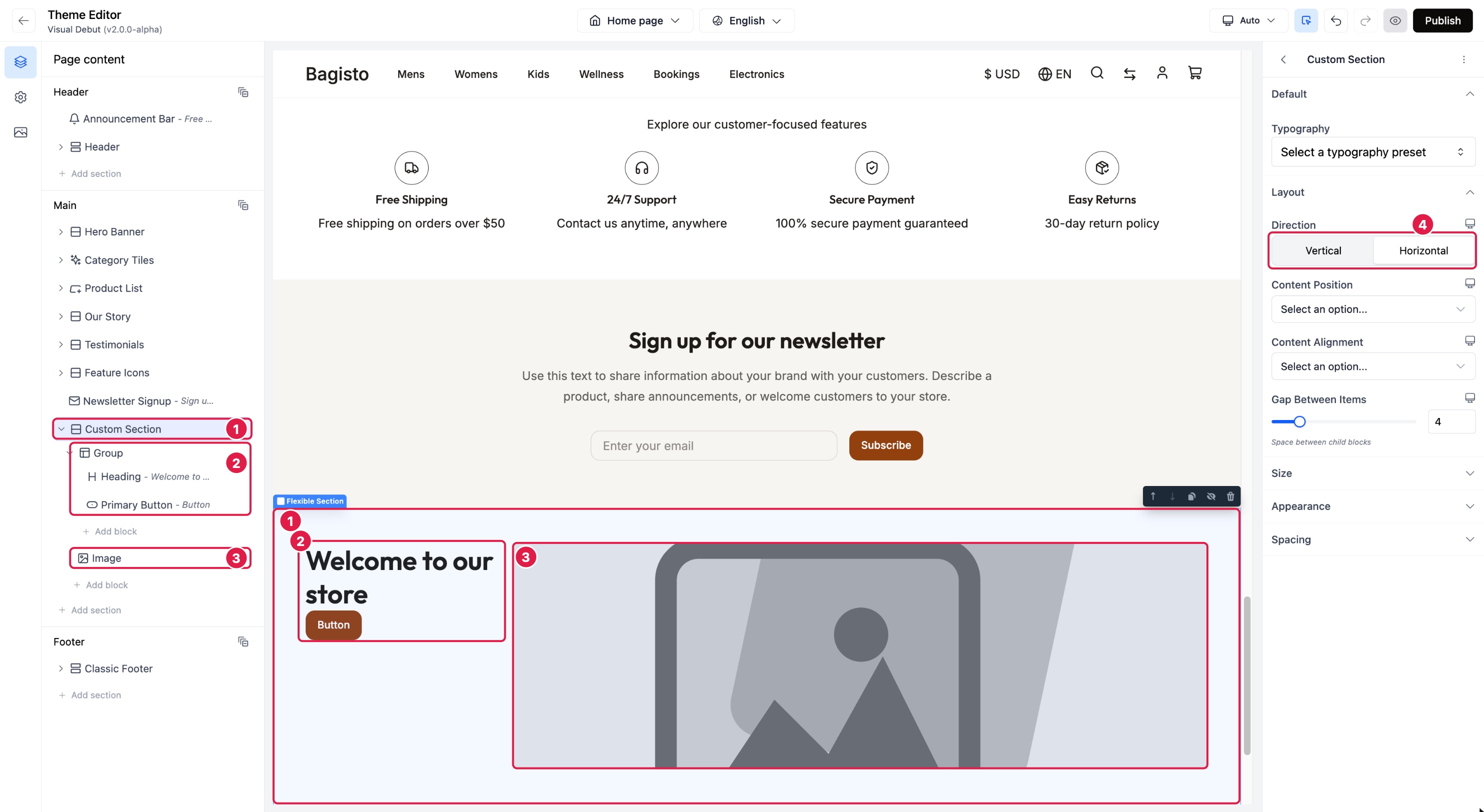
The Custom Section, in the tree and in the preview.
The Group that forms the left column, with a heading and a button.
The Image that forms the right column.
Direction set to Horizontal, which places 2 and 3 side by side.
Under Main, click Add section, search for Custom, and choose Custom Section.
With the new section selected, open Layout and set Direction to Horizontal.
In the tree, click Add block under the section and choose Group (in the Layout category). This will be the left column.
Click Add block under the Group and add a Heading. Add a Primary Button the same way. Add a Text block between them if you want a description.
Click the Add block row that belongs to the section itself (the lower one, less indented) and choose Image. It appears to the right of the group.
Fill in the content: select the heading and type your title, select the button and set its Text and URL, select the image and choose a photo.
Polish it:
- Select the section and set Content Alignment to Center so the text is vertically centered next to the image.
- Open Appearance and pick a Color Scheme that stands out from the sections around it.
- Adjust Gap Between Items and Spacing until it breathes.
Make it work on phones
Two columns are usually too narrow on a phone.
- Select the section.
- Click the screen icon next to Direction and choose Mobile.
- Set Direction to Vertical.
On phones the image now sits under the text, while tablets and computers keep the two columns. See Settings that change per device.
Layout patterns to reuse
| You want | Build it like this |
|---|---|
| Centered text banner | Custom Section, Vertical, Content Alignment Center, a Heading, a Text and a button. Add a background image with an overlay for a hero. |
| Text next to an image | The example above. Swap the Group and the Image to put the image on the left. |
| Three feature columns | Custom Section, Horizontal. Add a Group with an Icon, a Heading and a Text, style it, then Duplicate it twice. |
| Row of buttons | A Group set to Horizontal containing two buttons, placed inside a vertical section. The hero banner's Buttons block is built this way. |
| Card with a frame | A Group with a color scheme, Show Border, a Border Radius and some padding. |
Tips
- Build one column, then duplicate it. Style a Group fully, then duplicate it to get identical columns.
- Use the tree for nesting. It is easier to see which Add block row belongs to which group in the tree than in the preview.
- Change the scheme, not the colors. A color scheme on the section restyles everything inside it at once.
- Save time with ready made sections. If a section in the picker is close to what you want, start from it and adjust. Hero Banner, for example, is a Custom Section with content already in place.