Editor UI
You can add sidebar panels, tabs next to a block's settings, header buttons and keyboard shortcuts. Each one is registered on editor.ui inside your visual:editor:ready listener. Dialogs have a page of their own, see Modals.
Every place that renders UI takes a render option, which is either:
- a Vue component. It receives the editor as the
editorprop. - a function that returns an
HTMLElement. It receives{ editor }.
Sidebar Panels
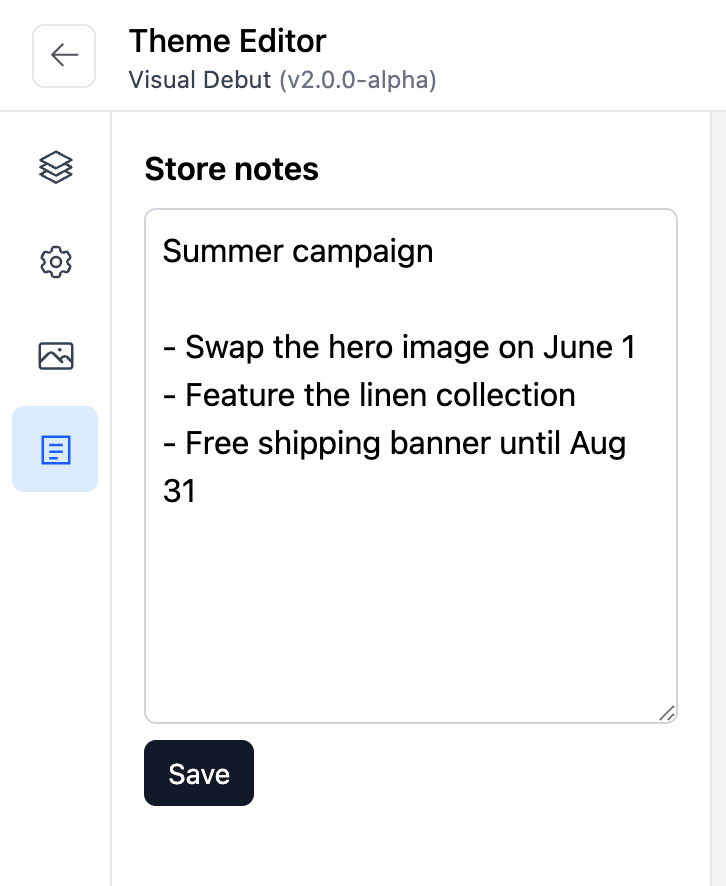
A sidebar panel adds an icon to the left bar of the editor. Clicking the icon opens the panel next to it.
import NotesPanel from './NotesPanel.vue';
import NotesIcon from './NotesIcon.vue';

editor.ui.registerSidebarPanel({
  id: 'store-notes',
  title: 'Store notes',
  icon: NotesIcon,
  render: NotesPanel,
});<!-- NotesPanel.vue -->
<script setup>
import { ref, watch } from 'vue';
const props = defineProps({ editor: Object });
const notes = ref(localStorage.getItem('store-notes') ?? '');
watch(notes, (value) => localStorage.setItem('store-notes', value));
function save() {
props.editor.ui.toast('Notes saved');
}
</script>
<template>
<div class="store-notes">
<h2>Store notes</h2>
<textarea v-model="notes" rows="10"></textarea>
<button type="button" @click="save">Save</button>
</div>
</template>| Option | Description |
|---|---|
id | Unique id. Registering the same id again replaces the panel. |
title | Shown as the tooltip of the icon. |
icon | A Vue component or a function returning an element, usually an SVG. Without it, the bar shows the first letter of title. |
render | The panel content. |
order | Position in the bar. Lower numbers come first. |
The same panel as a plain function:
editor.ui.registerSidebarPanel({
  id: 'store-notes',
  title: 'Store notes',
  render: ({ editor }) => {
    const panel = document.createElement('div');
    panel.className = 'store-notes';
    panel.textContent = 'Write your notes here';

    return panel;
  },
});
editor.ui.removeSidebarPanel(id) removes a panel.
Block Settings Tabs
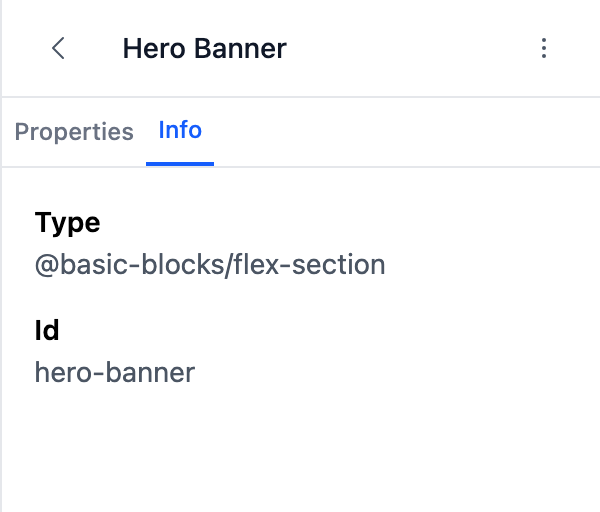
A configuration panel adds a tab next to Properties in the block settings panel, shown while a block is selected.
import BlockInfoPanel from './BlockInfoPanel.vue';

editor.ui.registerConfigurationPanel({
  id: 'block-info',
  title: 'Info',
  render: BlockInfoPanel,
});<!-- BlockInfoPanel.vue -->
<script setup>
import { computed } from 'vue';
const props = defineProps({ editor: Object });
const block = computed(() => props.editor.getActiveBlock());
</script>
<template>
<dl v-if="block" class="block-info">
<dt>Type</dt>
<dd>{{ block.type }}</dd>
<dt>Id</dt>
<dd>{{ block.id }}</dd>
</dl>
</template>The tab takes the same options as a sidebar panel. getActiveBlock() is reactive, so the tab follows the selection. editor.ui.removeConfigurationPanel(id) removes it.
Header Actions
A header action adds a button or any component to the editor header. Pick its place with slot: left, center or right.

For a simple button, pass button instead of render:
editor.ui.registerHeaderAction({
  id: 'sync',
  slot: 'left',
  button: {
    text: 'Sync',
    variant: 'secondary',
    onClick: async (event, { editor, toggleLoading }) => {
      toggleLoading();
      await fetch('/admin/my-sync', { method: 'POST' });
      toggleLoading();

      editor.ui.toast('Synced');
    },
  },
});
toggleLoading() switches the button's loading state, which disables it while your work runs. variant is one of default, primary, secondary, accent or destructive.
For anything richer, pass a component as render. It receives the editor prop:
import StoreStatus from './StoreStatus.vue';

editor.ui.registerHeaderAction({
  id: 'store-status',
  slot: 'right',
  order: -50,
  render: StoreStatus,
});
An action takes either button or render, never both. Use order to place it among the other actions of its slot, lower numbers first. editor.ui.removeHeaderAction(id) removes an action.
Keyboard Shortcuts
editor.ui.registerKeyboardShortcut({
  key: 'ctrl+shift+h',
  handler: ({ editor }) => editor.ui.openModal('help'),
});
key lists the modifiers in this order, followed by the key in lower case: ctrl, meta, shift, alt. For example ctrl+shift+h, or meta+k for Cmd+K on macOS. Register both the ctrl and the meta form to cover Windows and macOS.
Shortcuts work while focus is in the editor, not while it is inside the preview. A shortcut replaces any existing one with the same key, including the editor's own undo and redo shortcuts. editor.ui.removeKeyboardShortcut(key) removes it.
Preview Devices
editor.devices.addCustomDevice() adds a width to the device menu in the header:
editor.devices.addCustomDevice({ id: 'wide', label: 'Wide screen', width: 1600 });These devices are saved in the browser of the person editing, the same way as devices they add themselves from the menu. They stay after your extension is removed until that person deletes them, or until you call editor.devices.removeCustomDevice('wide').