Editing Settings
When you select a section or block, its settings open in the settings panel: on the right on wide screens, over the left panel on smaller ones (see On smaller screens). This page explains how that panel is organized, what each kind of field does, and how to use a different value on mobile, tablet and desktop.
How settings are grouped
Settings are grouped so the most common ones come first. Click a group name to open or close it. Most sections and blocks use some of these groups:
| Group | What you change there |
|---|---|
| Default | The content: text, links, images, products, and the choices that define the block (for example the heading level). |
| Layout | How child blocks are arranged: direction (row or column), position, alignment and the gap between them. |
| Size | Width (full width or contained), height and similar dimensions. |
| Typography | The text style, picked from your theme's typography presets. |
| Appearance | Color scheme, background (color, gradient or image), border, corner radius and overlay. |
| Spacing | Padding: the empty space inside the section or block, on each side. |
Some ready made sections show all their settings in one list with small headings instead of groups. They work the same way.
Field types
Text fields
Single line text, such as a heading or a button label. Type and the preview updates as you go.
Rich text
Longer text with simple formatting. The small toolbar gives you bold, italic, underline, bullet lists and numbered lists. Keep formatting light; the theme's typography handles the rest.
Choices
- Segmented buttons (for example Vertical | Horizontal, or H1 to H6): click one.
- Dropdowns: pick an option from the list.
- Checkboxes and switches: turn an option on or off, for example Open in new tab or Show overlay.
Numbers and sliders
Drag the slider or type a value in the box next to it. The unit (such as px) is shown when it matters.
Links
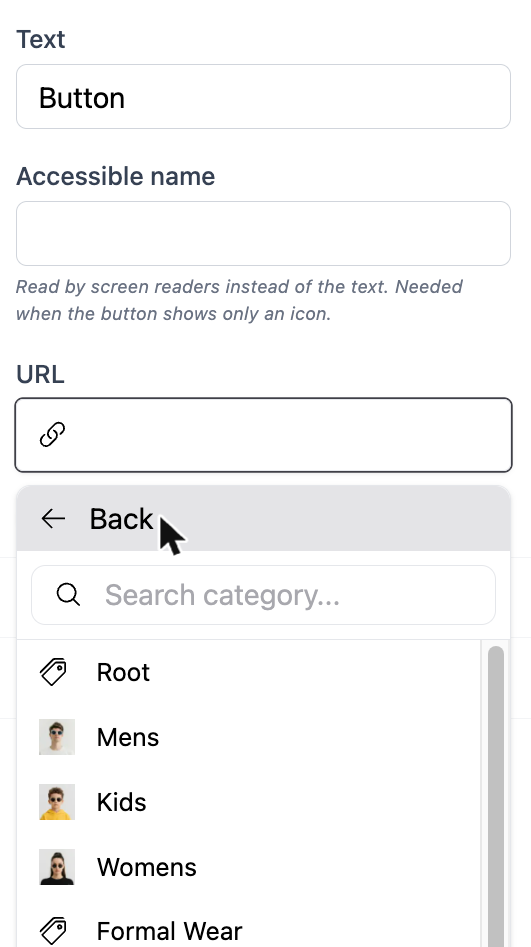
Click the URL field to choose what the link points to:
- Categories, Products or CMS Pages: browse or search, then click one.
- Or type any web address, for example
https://example.comor/contact-us.
Product, category and page pickers
Some sections ask for a specific product, a category or a CMS page, or a list of them. Click the field, search, select, and confirm.
Images and video
Images open the image panel, where you upload and choose images and set alt text and focal point. See Working with Images.
Video fields offer two options: Upload a video file to your media library, or paste an External URL from YouTube or Vimeo.
Colors and gradients
Click the swatch to open the color picker, or type a hex value such as #8B4513. Gradient fields blend several colors in the same way.
Prefer color schemes
Instead of picking colors block by block, choose a Color Scheme in the Appearance group. Schemes keep your colors consistent and can be changed for the whole store at once. See Theme Settings.
Icons
Click the field and pick an icon from the library. Use the search box to find one by name, such as truck or heart.
Spacing
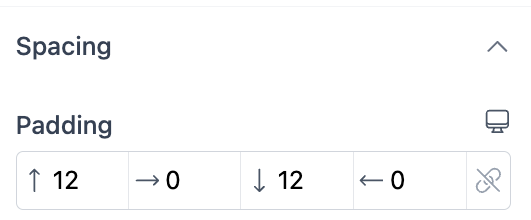
Spacing fields have four boxes: top, right, bottom and left. The chain icon at the end links the four values so they change together. When the chain is broken, each side is set on its own; click the icon to switch.
Settings that change per device
Many layout and style settings can have a different value on mobile, tablet and desktop. These settings have a small screen icon next to their name.
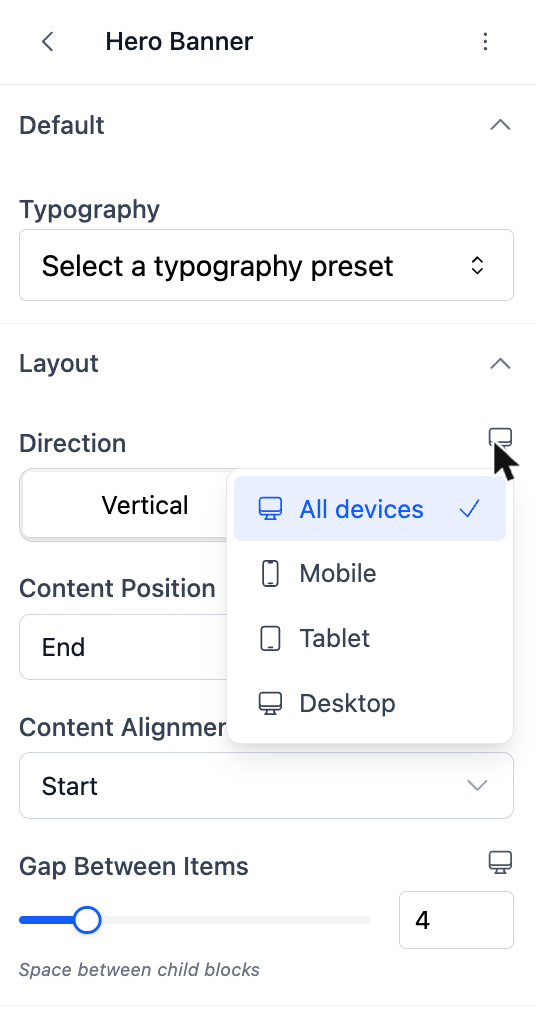
- Click the screen icon next to the setting.
- Choose Mobile, Tablet or Desktop. The preview switches to that device.
- Change the value. It now applies to that device only.
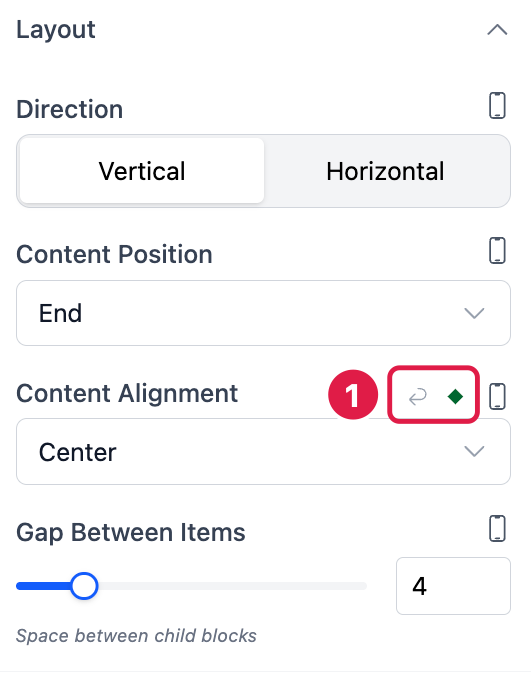
While a device is active, a green dot next to a setting (1 in the screenshot) means it has its own value for that device. Click the curved arrow beside the dot to remove that value, so the setting goes back to the value used on all devices.
All devices is the value used wherever you have not set something specific. A sensible way to work is:
- Design the page with the preview on Auto or Desktop, using All devices values.
- Switch to Mobile and fix only what does not fit: a smaller section height, a vertical layout instead of a row, less padding.
- Check Tablet last.
To go back to editing for all devices, set the preview back to Auto from the device menu in the top bar.
Settings that are linked to the page
Some blocks show information from your catalog rather than text you type. A Product Title block on the product page, for example, shows the name of whichever product the customer is viewing. Its settings only control how it looks. To choose which product the editor uses while you design, see Pages & Templates.