Sections & Blocks
Pages are built from sections, and sections are built from blocks. This page shows how to add, select, arrange, hide and remove them.
How a page is put together
Header area          (shared by every page)
  Announcement Bar
  Header
Main area            (this page only)
  Hero Banner        (a section)
    Content          (a block that holds other blocks)
      Text
      Heading
      Text
      Buttons
        Button
        Button
  Category Tiles
  ...
Footer area          (shared by every page)
  Classic Footer
A block can contain other blocks. That is how one section can hold a column of text next to an image, or a row of buttons. The Page content tree on the left shows this structure; click the arrow next to a name to open it.
Adding a section
- In the Page content tree, click Add section under the area you want (Header, Main or Footer).
- Browse the categories or type in Search blocks... to filter.
- Hover an item to read what it does, then click it.
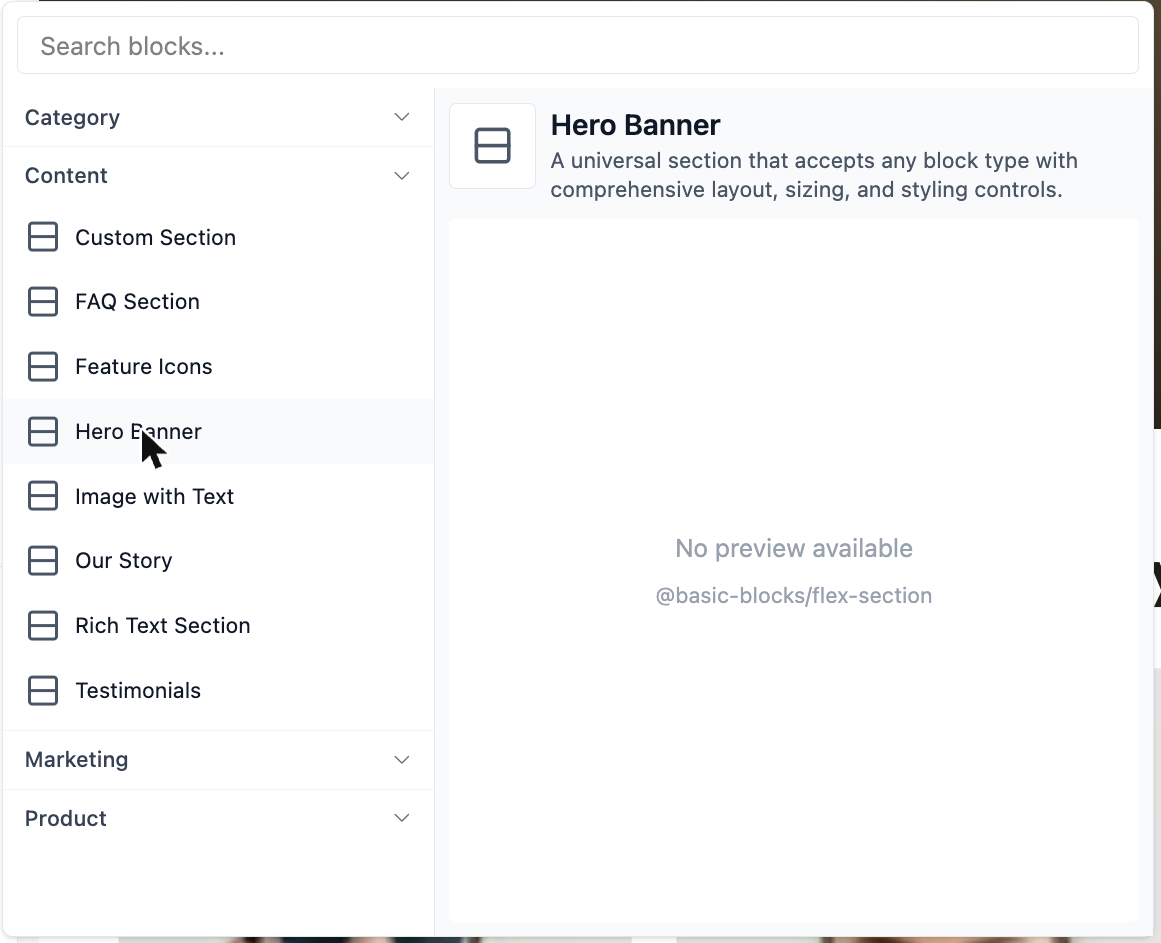
The new section is added at the end of that area and selected, so you can edit it right away.
In the Visual Debut theme the picker offers:
| Category | Sections |
|---|---|
| Category | Category Grid, Category Tiles |
| Content | Custom Section, FAQ Section, Feature Icons, Hero Banner, Image with Text, Our Story, Rich Text Section, Testimonials |
| Marketing | Contact Form, Newsletter Signup |
| Product | Featured Products, New Arrivals |
Many of these are ready made designs: they come filled with example blocks and content that you then replace. Custom Section is the exception; it starts empty so you can build your own layout. See Building Custom Layouts.
INFO
The list depends on your theme and on the page you are editing.
Adding a block
Every section or block that accepts content has an Add block row below its children in the tree.
- Click Add block at the level where the new block should go.
- Pick a block from the picker. Use the search field to find one quickly.
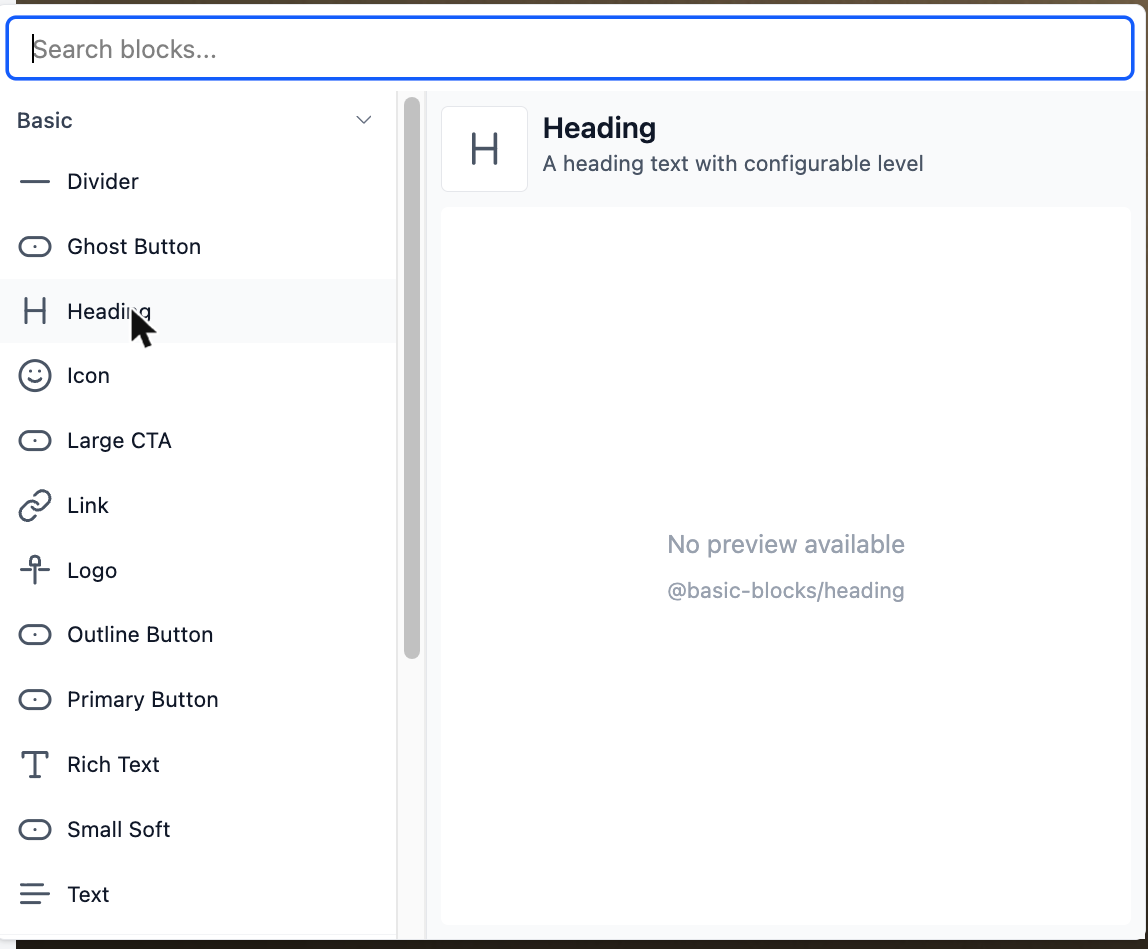
The block picker groups blocks by purpose:
| Category | Examples |
|---|---|
| Basic | Heading, Text, Rich Text, buttons (Primary, Outline, Ghost, Small Soft, Large CTA), Link, Icon, Logo, Divider |
| Layout | Group (a container that arranges blocks in a row or a column) |
| Media | Image |
| Product | Product Title, Product Price, Product Image, Product Description and more |
| Category | Category Name, Category Image, Category Description, Category Banner |
| Navigation | Navigation menus and footer link groups |
Product and category blocks show information about the product or category being viewed. They are meant for product and category pages. See Pages & Templates.
Selecting a section or block
There are two ways:
- In the preview: click it. Make sure Select mode (the cursor icon in the top bar) is on.
- In the tree: click its name. This is the easiest way to reach small or nested blocks, or blocks that are hidden.
The selected item is outlined in the preview, highlighted in the tree, and its settings open in the settings panel.
Moving things around
You have three ways to reorder sections and blocks:
- Drag and drop a row in the Page content tree.
- Click the up or down arrow in the toolbar above the selected block in the preview.
- Use ⋮ > Move to Previous or Move to Next in the settings panel.
Blocks inside a row move left and right; blocks inside a column move up and down.
Duplicating
Select the item and click the copy icon in the preview toolbar, or use ⋮ > Duplicate. The copy appears right after the original, with the same content and settings. Duplicating is the fastest way to add a second button, card or slide that matches the first one.
Hiding a section or block
Hide something when you want it off the storefront for now but may need it again, for example a seasonal banner.
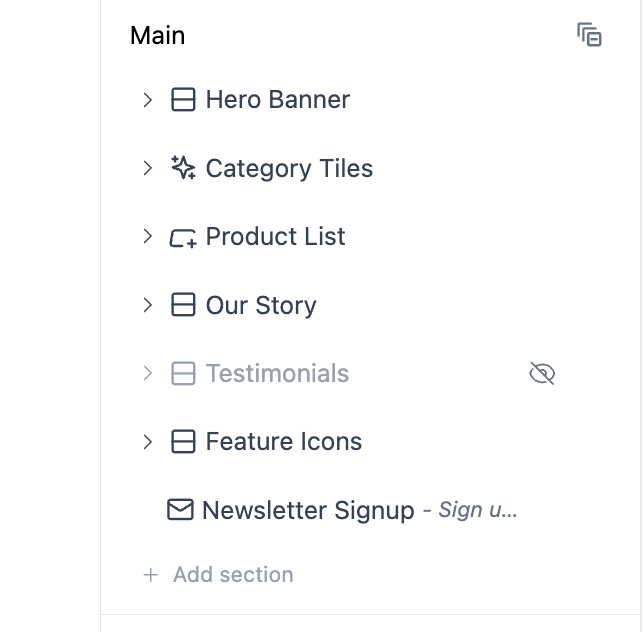
- Hover its row in the tree and click the eye icon, or
- Click the crossed eye in the preview toolbar, or
- Use ⋮ > Disable.
Hidden items stay in the tree, greyed out, with all their settings intact. Click the eye icon again to show them.
Removing a section or block
Click the trash icon in the tree or the preview toolbar, or use ⋮ > Remove. The item and everything inside it are removed from the page.
If you remove something by mistake, click Undo in the top bar (or press Ctrl + Z, Cmd + Z on a Mac). If you are not sure you will need it again, hide it instead.
The shared header and footer
Sections in the Header and Footer areas appear on every page of your store. Editing the announcement bar while you are on the product page changes it on the home page too.
Sections in the Main area belong only to the page you are editing.
Tips
- Name hints help. The grey text after a block name in the tree shows the start of its content, so you can find the right Text block among several.
- Collapse long pages. Click the icon next to an area name to collapse everything in it.
- Start from a ready made section. It is usually faster to add a section like Image with Text and replace its content than to build the same thing from an empty Custom Section.