Pages & Templates
Your store has many pages, but only a handful of page types. All product pages share one design, all category pages share another, and so on. In the editor, each page type is called a template. Edit the product template once and every product page follows.
Switching pages
Click the page selector in the middle of the top bar.
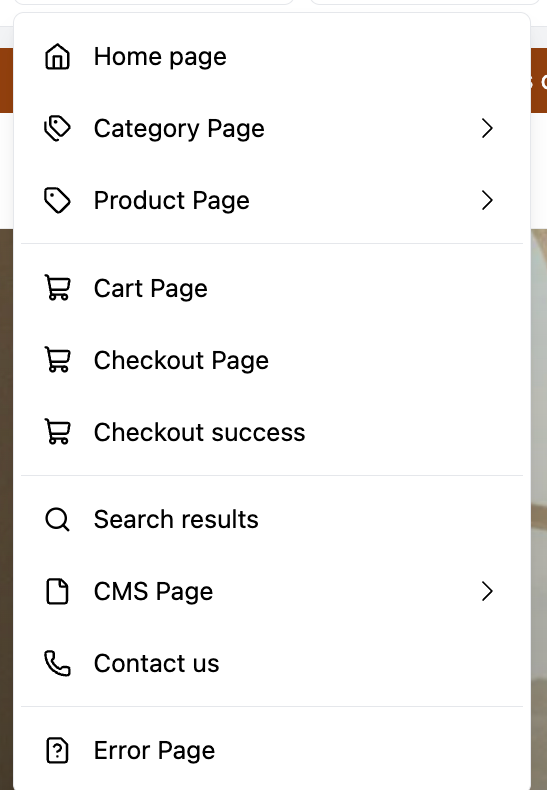
| Template | Used for |
|---|---|
| Home page | Your storefront's front page. |
| Category Page | Every category listing, such as Mens or Shoes. |
| Product Page | Every product page. |
| Cart Page | The shopping cart. |
| Checkout Page | The checkout steps. |
| Checkout success | The thank you page after an order. |
| Search results | The results of a store search. |
| CMS Page | Content pages you create in CMS > Pages, such as About us. |
| Contact us | The contact page. |
| Error Page | The page shown when a link is broken (404) or something goes wrong. |
An arrow next to Category Page, Product Page and CMS Page means you can create alternative designs for them. See Custom Templates.
Browsing to a page
You can also reach a page by browsing the preview:
- Turn off Select mode (the cursor icon in the top bar).
- Click through your store as a customer would, for example open a category from the menu.
- The page selector switches to the matching template, and the tree shows that page's sections.
- Turn Select mode back on to continue editing.
This is also the way to see the product or category template with a particular product or category in it.
Product pages
The product template is built entirely from blocks, so you can rearrange it like any other page.
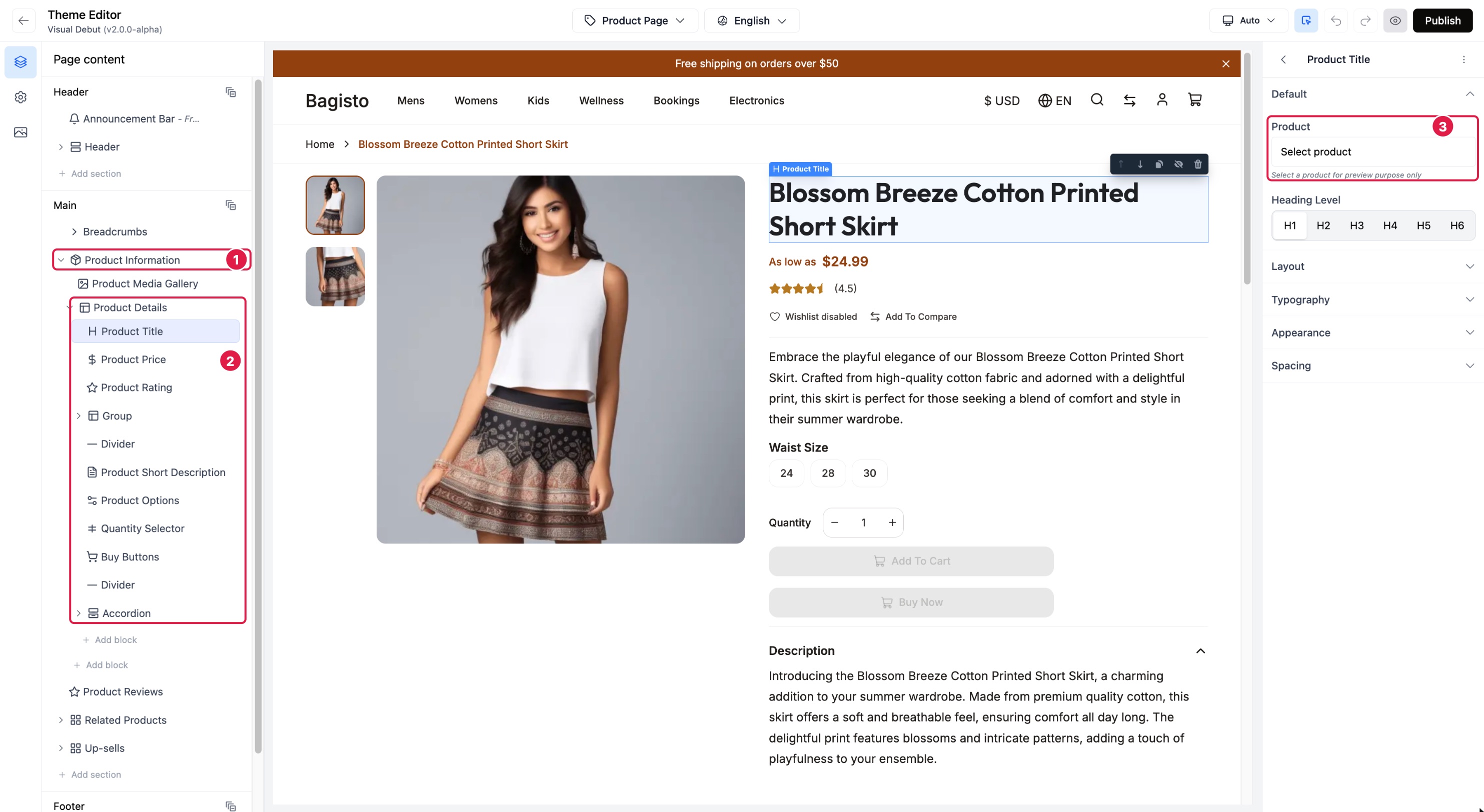
- The Product Information section.
- The blocks of Product Details, which you can reorder.
- The Product field: leave it empty (see the warning below).
The Product Information section holds two parts: the Product Media Gallery and Product Details. Product Details contains blocks such as:
- Product Title, Product Price, Product Rating
- Product Short Description and an Accordion with the full description
- Product Options (sizes, colors and other choices), Quantity Selector and Buy Buttons
- Option blocks for special product types: bundle, grouped, downloadable and customizable products
Below it, sections such as Product Reviews, Related Products and Up-sells complete the page.
These blocks fill themselves in with the product the customer is viewing. Their settings only change how they look, not what they say: the title text comes from the product in your catalog, not from the editor.
Common changes:
- Move the price above the title: drag Product Price above Product Title in the tree.
- Add a trust message under the buy buttons: click Add block inside Product Details, add a Text or an Icon block, and move it under Buy Buttons.
- Hide the rating: hide Product Rating.
Previewing with a real product or category
The editor shows the template with one of your products (or categories). To see another one, browse to it in the preview as described above.
Leave the Product field empty on product pages
Product blocks such as Product Title have a Product field. On the product template, leave it empty so the block shows the product the customer is viewing. If you choose a product there, the block shows that product on every product page. The field is meant for using a product block elsewhere, for example to feature one product on the home page. Category blocks have a Category field that works the same way.
Category pages
The category template shows the category header and the Category Products section with filters, sorting and the product grid. You can add sections above or below it, for example a banner or a text about the category.
Category blocks (Category Name, Category Image, Category Description, Category Banner) show the category being viewed, the same way product blocks do.
CMS pages
The CMS Page template controls the layout around the content you write in CMS > Pages in the Bagisto admin. The page text itself is written in the admin; the editor controls what surrounds it. To give a specific page, such as a landing page, its own design, use a custom template.
Pages you cannot edit
Some pages, such as the customer login and account pages, cannot be customized in the theme editor. If you browse to one in the preview, the editor tells you:
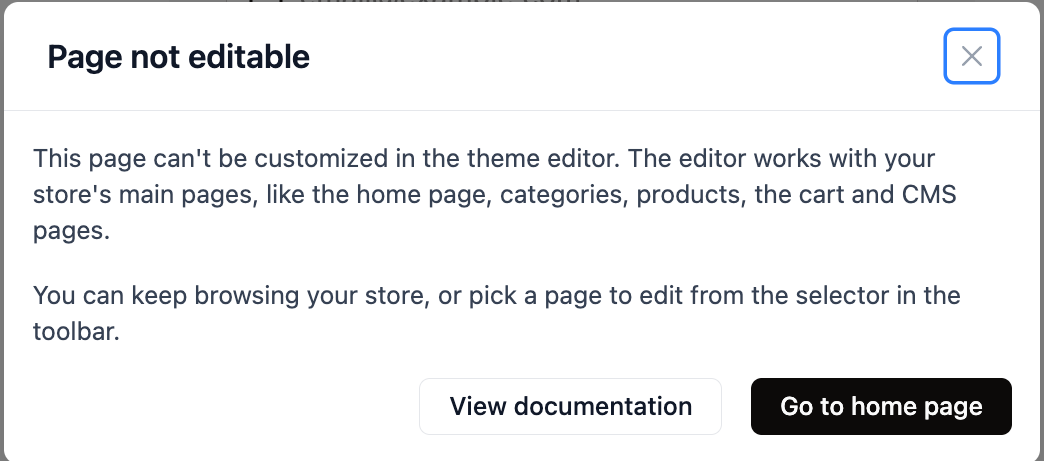
Click Go to home page, or close the message and keep browsing. The shared header and footer still apply to these pages, so changes to them show up there too.