Languages & Channels
If your store is available in several languages or runs several channels, each one can have its own content. This page explains what is shared, what is separate, and the order of work that saves you the most effort.
Switching language
Click the language selector in the top bar and choose a language. The preview reloads in that language, and everything you edit from then on applies to it.
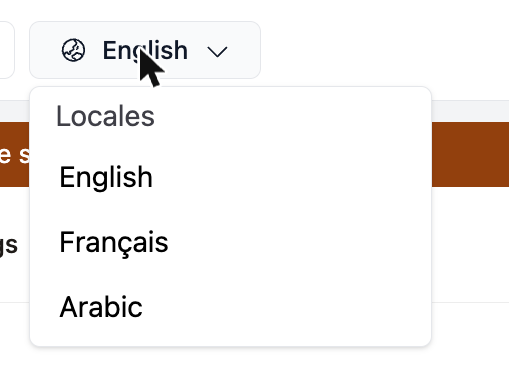
The selector lists the languages of the current channel. It is hidden when the channel has only one language. You manage languages in the Bagisto admin under Settings > Locales and Settings > Channels.
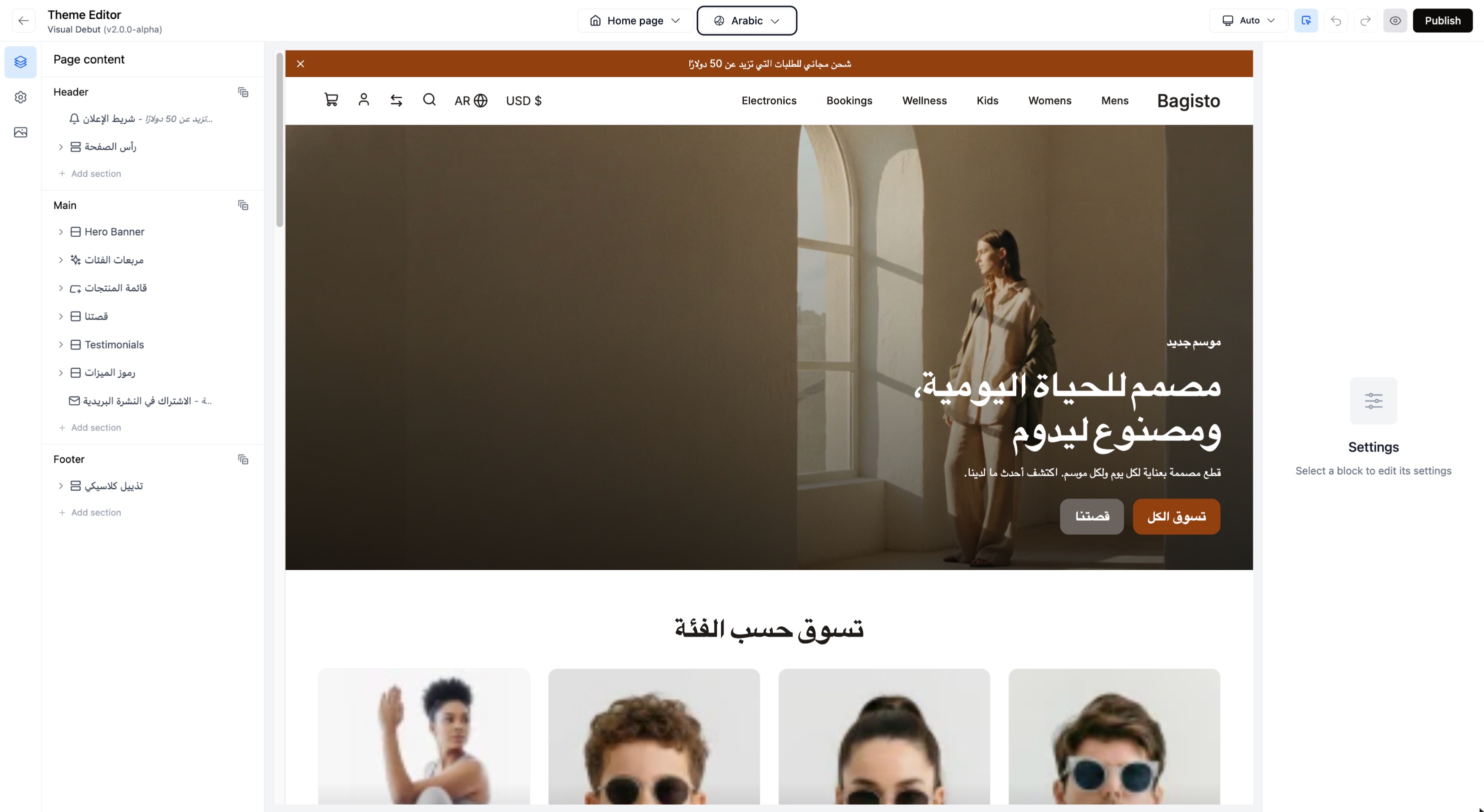
Right to left languages such as Arabic are displayed right to left in the preview, exactly as customers see them. Check them separately: a layout that looks balanced left to right can need small adjustments.
What each language keeps
Every language starts as a copy of the channel's default language (the language selected first when you open the editor). From there:
- A language you have never edited follows the default language completely. Any change you make in the default language shows up in it.
- The first time you change something in a language, it keeps its own copy of all its texts. From then on, text you change in the default language no longer flows into it. Translate each language yourself.
- Settings you have not changed in that language keep following the default language. If you only translated texts, a new background color or a new image chosen in the default language still appears in the other languages.
- Adding, removing or reordering sections or blocks in a language gives that language its own structure for that part of the page. Sections you add later in the default language will not appear there; add them in that language too.
Theme settings (colors, fonts, logo) follow the same rule.
Recommended way to work
- Build in the default language first. Finish the layout, images, colors and theme settings there.
- Then translate. Switch to each other language and change only the texts: headings, paragraphs, button labels, alt text.
- Make structural changes in the default language. If you later add a section, add it in the default language, then switch to each other language to translate it. If a language already has its own structure, add the section there as well.
- Change theme settings while the default language is selected, unless you really want a different logo or color for one language.
Keep a checklist
When you add a section after your languages are translated, note it down and translate it in every language before you publish.
Channels
If your Bagisto store has several channels (for example one per country or brand), a channel selector appears in the top bar next to the language selector.
Channels work like languages: each channel starts from the default channel and keeps its own copy of what you change in it. Switching channel can also change the list of languages, because each channel has its own set.
Publishing
Publish makes the drafts of every language and every channel live at once. Before publishing, switch through the languages you changed and check them. See Preview & Publish.