Working with Images
Images appear in many places: hero backgrounds, image blocks, category tiles, your logo. They all use the same image panel.
Choosing or uploading an image
- Select the section or block, then find its image setting (for a section background, open Appearance).
- Click Select image, or Change image if one is already set.
- The image panel opens in place of the settings.
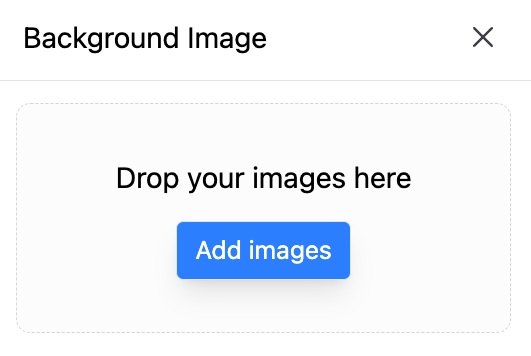
- Drop image files on the panel, or click Add images to browse your computer. You can upload several at once.
- Click the image you want, then click Select.
Images you upload are kept in a library shared by the whole theme, so you can reuse them anywhere without uploading again. When you upload, the editor also prepares smaller copies so phones download a lighter file.
To remove an image from a setting, click the × in the corner of its thumbnail.
Alt text and focal point
Click Edit metadata under an image thumbnail.
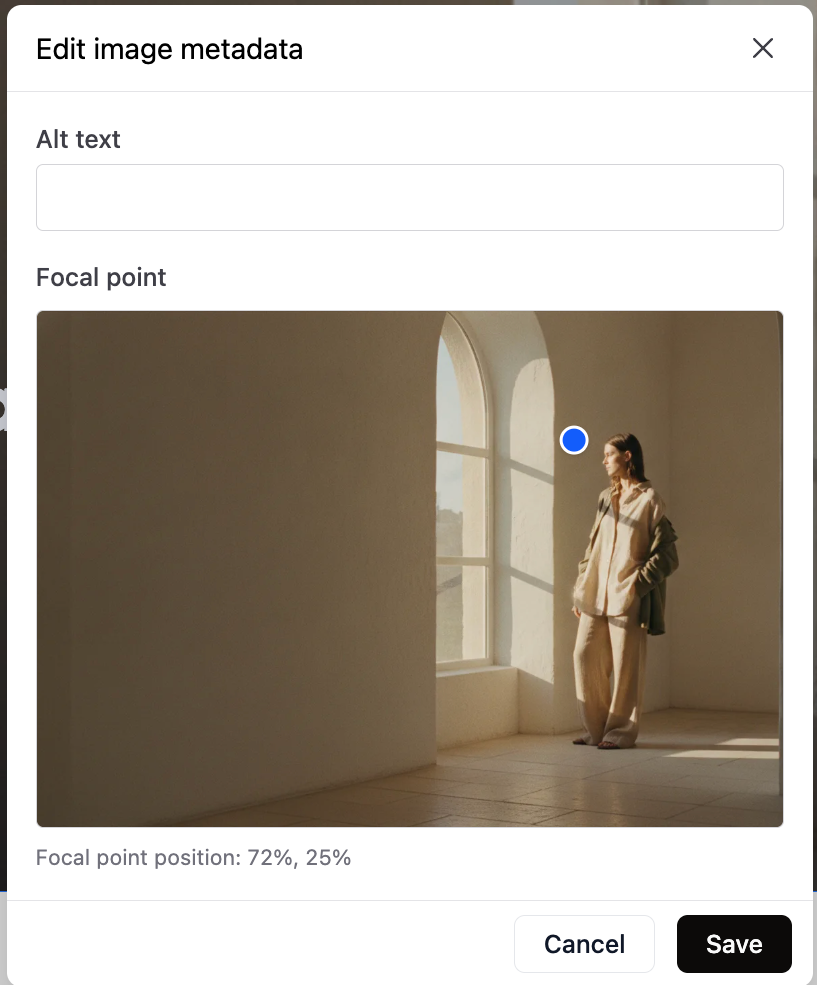
Alt text
A short description of the image, read aloud by screen readers and shown if the image fails to load. It also helps search engines. Describe what matters in the picture, for example Woman in a linen shirt standing by a window. For purely decorative images, leave it empty.
Focal point
When an image fills an area of a different shape (a wide banner on a desktop, a tall one on a phone), part of it is cropped. The focal point tells the theme which part to keep in view.
Click or drag the blue dot onto the most important part of the image, usually a face or the product. The position is shown under the image as percentages. Click Save.
Check the crop on every device
After setting a focal point, switch the device preview between Mobile, Tablet and Desktop to see how the image is cropped on each.
Background images
Sections with a background image have a few more options in Appearance:
- Background Size: Cover fills the area and crops the image; Contain shows the whole image, possibly with empty space around it.
- Background Repeat: whether a small image is tiled.
- Load first: turn it on for the first image at the top of a page, such as the hero, so it appears faster. Leave it off for images further down.
- Show Overlay: a solid or gradient layer over the image so text on top stays readable.
Good image habits
- Use the right shape. Wide images (about 16:9 or wider) for banners, square or portrait images for cards and tiles.
- Do not upload huge files. A width of 2000 to 2500 pixels is plenty for a full width banner. Compress photos before uploading; JPEG or WebP work well for photos.
- Keep text out of images. Put headlines in Heading blocks on top of the image instead. They stay sharp, can be translated, and are readable by search engines and screen readers.
- Always set alt text on images that carry meaning.