Editing Bagisto themes
Bagisto Visual can also customize themes built for Bagisto itself, such as the Default theme or a theme you bought for Bagisto. Bagisto keeps storing the sections; the visual editor gives you a live preview to edit them in.
Supported Bagisto versions
| Bagisto release | Supported |
|---|---|
| 2.4.11, 2.4.12, 2.4.13 | Yes |
| 2.5.0-beta1, 2.5.0-beta2 | No |
| 2.5.0-beta3 and later betas | Yes |
| 2.5.0 | Yes |
Earlier releases, and 2.5.0-beta1 and beta2, do not have the section type registry this relies on. On those releases a Bagisto theme is simply not offered in the visual editor; visual themes keep working as usual.
Opening the editor
Go to Bagisto Visual > Themes and click Customize next to the theme.
Bagisto's own Appearance > Themes page has a Customize button as well. By default it opens Bagisto's appearance editor for a Bagisto theme. To send it to the visual editor instead, set editor in the theme's entry in config/themes.php:
'default' => [
    // ...
    'customize' => [
        'editor' => 'visual',
    ],
],
What you can edit
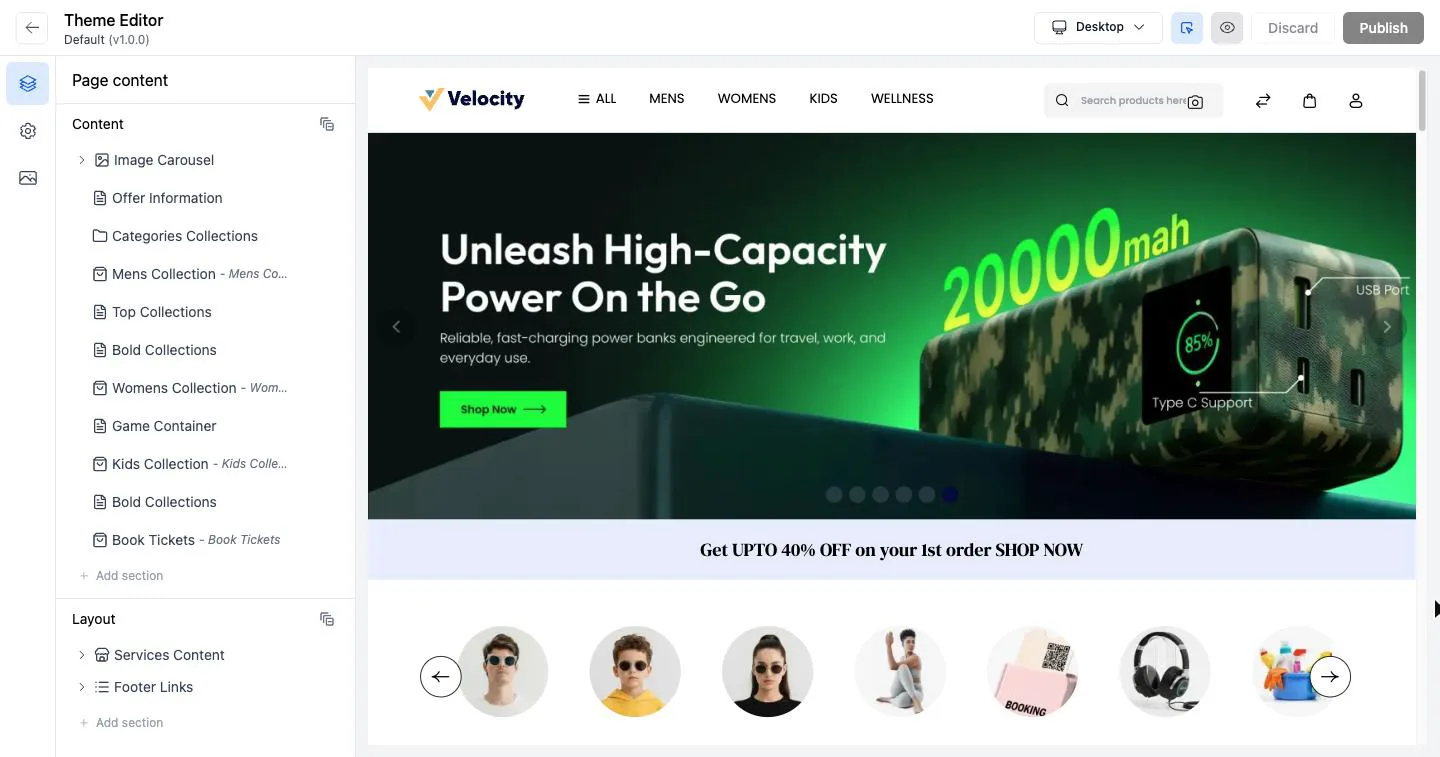
The sidebar lists the sections in two groups:
- Content: the sections of the home page, such as image carousels, category and product carousels and static content, plus any section type the theme adds.
- Layout: the sections drawn on every page, such as the services strip and the footer links.
You can add, remove, reorder and hide sections, and change their settings. Click a section in the preview to select it.
Browse to another page in the preview, such as a CMS page, and the sidebar shows only the layout sections, since those are the ones that page draws.
Images
Image settings pick from a library of the images the theme's sections already use, or take a new upload. Picking an image that belongs to another section stores a copy of it with this section, so removing it from one section never breaks the other.
Drafts, publishing and discarding
Every edit is held as a draft. Shoppers keep seeing the published storefront until you click Publish; the number on the button counts the sections holding changes.
- Publish makes every draft live and refreshes the full page cache: the home page for a content section, every page for a layout section.
- Discard drops every draft and puts the preview back to what is published.
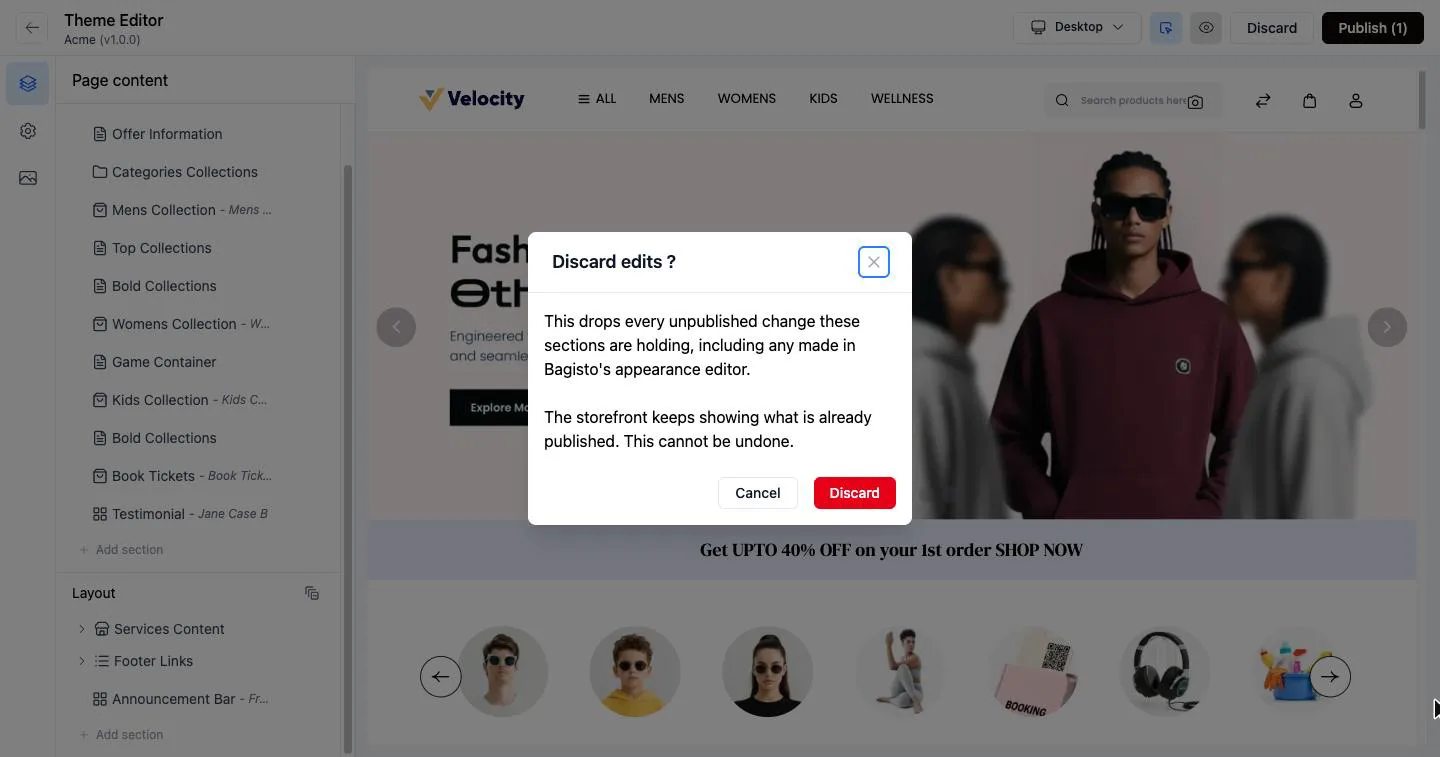
The visual editor and Bagisto's appearance editor work on the same drafts. A change made in one shows up in the other, and Discard in either drops both.
Removing a section is immediate
As in Bagisto's own editor, removing a section deletes it straight away, and Discard cannot bring it back. To take a section off the storefront for now, hide it instead.
Colors
The theme settings panel offers the colors the theme declares, by default its brand and accent colors. See Colors for how to declare them and what they reach. Some parts of the Default theme, such as the copyright bar of its footer, are drawn in fixed colors and do not change.
Building your own
A Bagisto theme can add section types of its own, and they can be edited here like the built in ones. See Custom section types.